![Icon for Courses-1.png]](https://help.oneclickcontractor.com/hs-fs/hubfs/Icon%20for%20Courses-1.png?width=36&height=36&name=Icon%20for%20Courses-1.png)
This technical reference documents the JobNimbus integration behavior described in the supplied FAQ, including synchronization schedules, Job and Contact modes, field mappings, appointment creation, document attachments, deletion behavior, and troubleshooting.
Integration type and synchronization
What does the Job or Contact type control?
The integration can be configured as Job or Contact. Job mode retrieves Jobs and their related Tasks. Contact mode retrieves Contacts and their related Tasks. The source FAQ does not describe other job-creation mappings or a separate record filter; the Job-versus-Contact choice is the documented configuration distinction.
When do JobNimbus users synchronize?
The supplied FAQ says users synchronize weekly at 5:00 AM UTC on Sundays. Selecting Sync also runs the integration's synchronization job and retrieves users. The FAQ says users are compared with OCC users by email address; matching email addresses link automatically. Unmatched users can be associated manually from Users Connected. Keep mappings active for them to be used.
How often do JobNimbus records update in OCC?
Job, Contact, and related Task updates are pulled every 15 minutes, at :05, :20, :35, and :50 after the hour. Select Sync to request a synchronization before the next scheduled run.
How do I request a manual synchronization?
Open the JobNimbus integration card from the organization's Integrations page.
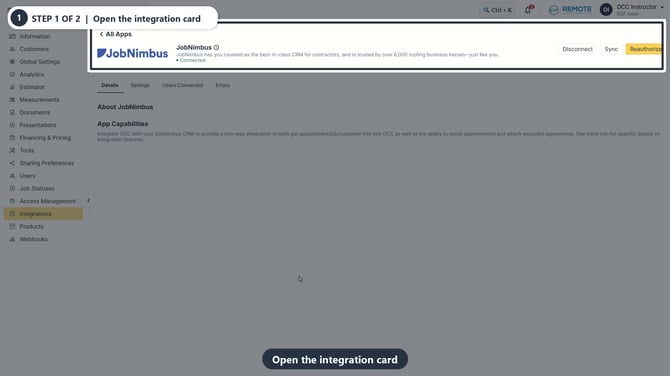
Current connected JobNimbus integration card.
Select Sync and confirm OCC displays the successful request message. The supplied recording shows “Sync Requested Successfully”; this confirms the request was accepted.
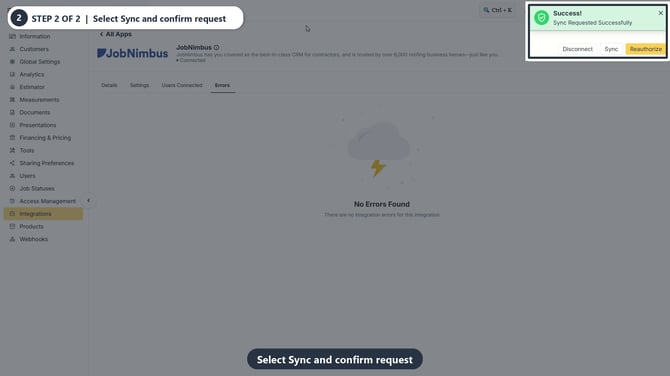
Connected JobNimbus card showing the Sync control and successful request notification. The organization name is concealed.
What does Sync retrieve?
Selecting Sync starts the integration synchronization job. The supplied FAQ describes these operations:
User pull
-
Retrieves JobNimbus users. The source FAQ says the integration calls JobNimbus's account/users endpoint, but qualifies this as “potentially”; confirm the exact endpoint if it is needed for technical diagnosis.
-
Maps crm_id from {user.id}, name from {user.first_name} {user.last_name}, and email from {user.email}.
Job mode
-
Retrieves Jobs and Tasks updated since the previous synchronization.
-
Looks for an active JobNimbus-to-OCC user mapping.
-
Ignores a Job that is not identified as primary. The supplied FAQ does not define how the primary designation is determined.
-
Imports the Job using the Job-mode mappings below.
-
Looks for Tasks related to that Job and creates an OCC appointment linked to the OCC Job.
Contact mode
-
Retrieves Contacts and Tasks updated since the previous synchronization.
-
Looks for an active JobNimbus-to-OCC user mapping.
-
Imports the Contact using the Contact-mode mappings below.
-
Looks for Tasks related to that Contact and creates an OCC appointment. The source FAQ says the appointment is linked to a Job in OCC.
User mapping
How are users matched?
OCC compares each JobNimbus user's email address with available OCC user email addresses. A matching email links automatically. Users synchronize weekly on Sundays at 5:00 AM UTC; selecting Sync also retrieves users.
How do I manually map a user?
Open Users Connected on the JobNimbus integration card and find the unmatched JobNimbus user.
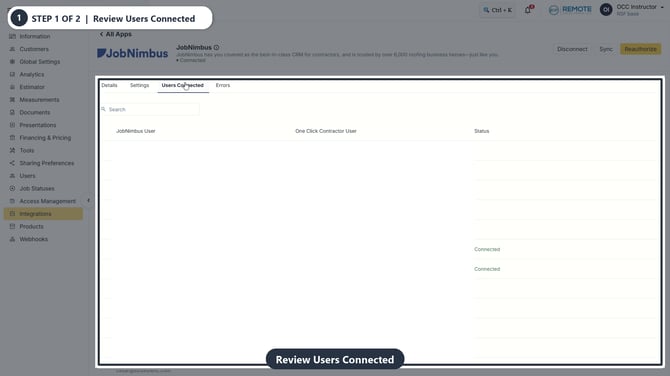
JobNimbus Users Connected table with names and email addresses concealed.
Select the edit pencil on that row. In the JobNimbus User Match dialog, choose the corresponding OCC user, keep Active selected, and select Save.
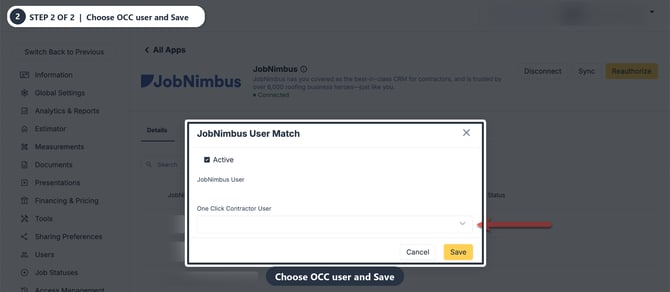
JobNimbus User Match dialog with the OCC user selector and Save control. User identifiers are concealed.
An active mapping is required for OCC to use the JobNimbus user for assignments and synchronization.
Job-mode data mapping
Customer, contact, and address fields
|
OCC field |
JobNimbus source or behavior |
|
Customer Name |
{job.name} |
|
Name |
{job.contact.first_name} {job.contact.last_name} |
|
|
{job.email} |
|
Lead Source |
{job.source_name} |
|
Address line 1 |
{job.address_line1} |
|
Address line 2 |
{job.address_line2} |
|
City |
{job.city} |
|
State |
{job.state_text}; mapped to the appropriate OCC value by lookup |
|
Postal code |
{job.zip} |
|
Assigned User |
{job.sales_rep} |
Phone numbers
The integration iterates over home_phone, mobile_phone, work_phone, and fax_number on the contact. It creates a phone name from the phone type by removing the underscore and capitalizing the first word (for example, home_phone becomes Home phone). The number comes from {contact.phone_type}.
Metadata and appointments
|
OCC field or metadata |
JobNimbus source or behavior |
|
job_nimbus_job_id |
{job.jnid} |
|
job_nimbus_contact_id |
{job.primary.id} |
|
job_nimbus_user_id |
{job.sales_rep.id} |
|
Appointment start time |
{task.date_start} |
|
Appointment end time |
{task.date_end} unless the end/start difference is greater than 7,200 seconds or less than 0; in either case, OCC sets the end time to date_start + 7,200 seconds (2 hours) |
|
Appointment note text |
{task.description} |
|
job_nimbus_event_id |
{task.jnid} |
Contact-mode data mapping
Customer, contact, and address fields
|
OCC field |
JobNimbus source or behavior |
|
Customer Name |
{contact.first_name} {contact.last_name} |
|
Name |
{contact.first_name} {contact.last_name} |
|
|
{contact.email} |
|
Lead Source |
{contact.source_name} |
|
Address line 1 |
{contact.address_line1} |
|
Address line 2 |
{contact.address_line2} |
|
City |
{contact.city} |
|
State |
{contact.state_text}; mapped to the appropriate OCC value by lookup |
|
Postal code |
{contact.zip} |
|
Assigned User |
{job.sales_rep} as listed in the supplied FAQ; verify this Job-mode field name for Contact mode |
Phone numbers
Contact mode uses the same phone iteration described for Job mode: home_phone, mobile_phone, work_phone, and fax_number. The phone label is derived from {phone_type} by removing the underscore and capitalizing it; the number comes from {contact.phone_type}.
Metadata and appointments
|
OCC field or metadata |
JobNimbus source or behavior |
|
job_nimbus_job_id |
nill as listed in the supplied FAQ; verify the expected value |
|
job_nimbus_contact_id |
{contact.id} |
|
job_nimbus_user_id |
{contact.sales_rep.id} |
|
Appointment start time |
{task.date_start} |
|
Appointment end time |
{task.date_end} unless the end/start difference is greater than 7,200 seconds or less than 0; in either case, OCC sets the end time to date_start + 7,200 seconds (2 hours) |
|
Appointment note text |
{task.description} |
|
job_nimbus_event_id |
{task.jnid} |
Document uploads to JobNimbus
Can OCC upload documents to JobNimbus?
Yes. The Document Attachment Preferences on the JobNimbus integration card's Settings tab control which document events are attached to JobNimbus.
|
Document group |
Available attachment events |
|
Proposal |
Button, Email |
|
Agreement |
Button, Email, Sent, Signed, Result Signed |
|
Signable Documents |
Sent, Signed |
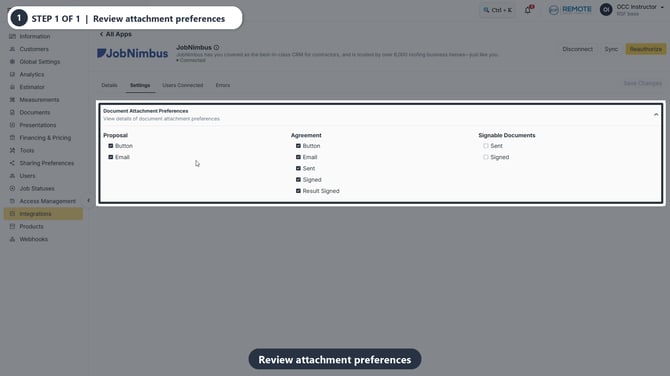
Current JobNimbus Document Attachment Preferences panel. The checkboxes show the captured organization's settings, not a recommended configuration.
The selected Job or Contact integration type determines the destination. In Job mode, documents attach to the Job. In Contact mode, they attach to the Contact; the source FAQ says they appear on that Contact's Documents tab.
Updates, assignments, and deletions
When do JobNimbus updates appear in OCC?
Updates are retrieved every 15 minutes at :05, :20, :35, and :50 after the hour. A manual Sync requests an earlier run. Changes to the assigned sales representative are pulled on this schedule when the user mapping is active.
What happens when a Job or Contact is deleted?
The supplied FAQ says the existing OCC information becomes orphaned or unlinked. OCC does not receive a deletion update and does not pull later updates for the deleted Job or Contact. The FAQ calls the first record an “Opportunity” in this answer; the rest of the document calls the integration type Job.
What happens when a JobNimbus appointment is deleted?
The supplied FAQ says OCC receives no update for a deleted JobNimbus appointment. The existing OCC appointment is not updated by that deletion.
Do OCC changes write back to JobNimbus?
OCC Job or Contact edits and OCC status changes are not pushed back to JobNimbus. Document uploads are a separate, configurable exception described above.
Troubleshooting
A Job or Contact has not appeared in OCC
-
Confirm the integration type is set to Job or Contact as intended.
-
Confirm the Job or Contact was updated since the last synchronization.
-
Confirm the associated JobNimbus user has an active OCC mapping.
-
In Job mode, confirm the Job is identified as primary; the source does not define this designation.
-
Select Sync or allow the next 15-minute run.
-
Open Errors and review the recorded entries. The supplied recording showed No Errors Found at the time it was captured; your current status may differ.
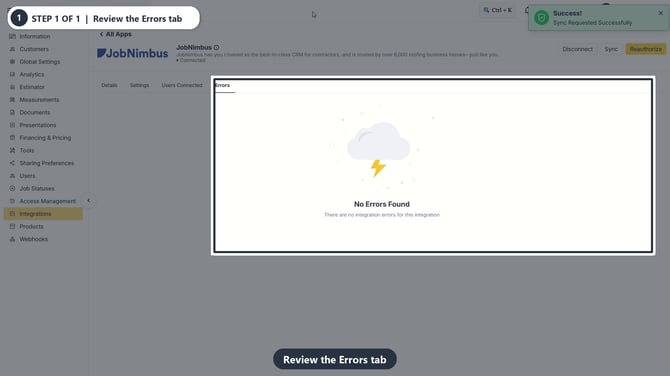
JobNimbus Errors tab in the supplied recording showing “No Errors Found” at capture time. The organization name is concealed.
A user is not connected
-
Compare the JobNimbus and OCC email addresses.
-
Select Sync to retrieve users, then open Users Connected.
-
Manually select the matching OCC user and keep the mapping active.
A JobNimbus change is not reflected in OCC
-
Allow the next scheduled 15-minute synchronization or select Sync.
-
Confirm the source record still exists and the related JobNimbus user mapping is active.
-
Check Errors for the timestamp, job class, and message.
A document is missing in JobNimbus
-
Confirm the matching document group and event are selected in Document Attachment Preferences.
-
Confirm whether the integration is configured as Job or Contact, then check that record's Documents tab in JobNimbus.
Remember
What you see can differ depending on your organization's settings and your permission level. Tab names, headers, and available options are configurable. If you cannot see or do something described here, ask your manager first. They can contact support.
The integration type controls whether the sync reads JobNimbus Jobs or Contacts. The document attachment preferences are separate and can send selected OCC documents back to JobNimbus.