![Icon for Courses-1.png]](https://help.oneclickcontractor.com/hs-fs/hubfs/Icon%20for%20Courses-1.png?width=36&height=36&name=Icon%20for%20Courses-1.png)
Requirements
-
OCC permission to manage integrations.
-
LeadPerfection Username, Password, and Client ID. Enter only the Client ID, not a full URL.
-
For existing customers, OCC access to the LeadPerfection GetEmployees API Security endpoint.
-
Without it, the employee sync cannot retrieve users needed for matching.
-
-
Document Type IDs and the LeadPerfection organization time zone if document return or appointment scheduling will be configured after authorization.
-
Keep credentials out of screenshots, tickets, and public channels.
Authorize or reauthorize the connection
Open Administration > Integrations > LeadPerfection.
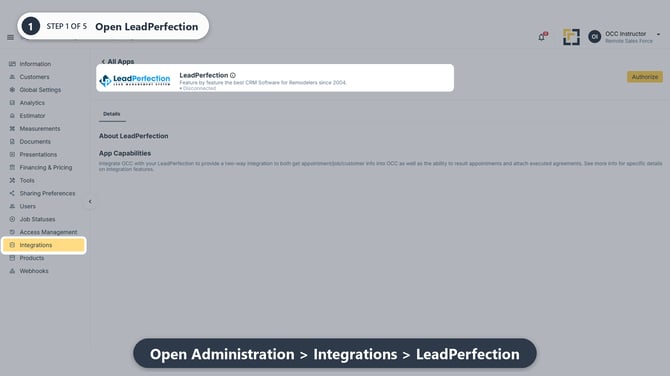
Open the LeadPerfection integration card.
Select Authorize or Reauthorize. Select Authorize for a first-time connection. Select Reauthorize when LeadPerfection is already connected and the credentials or authorization need to be refreshed.
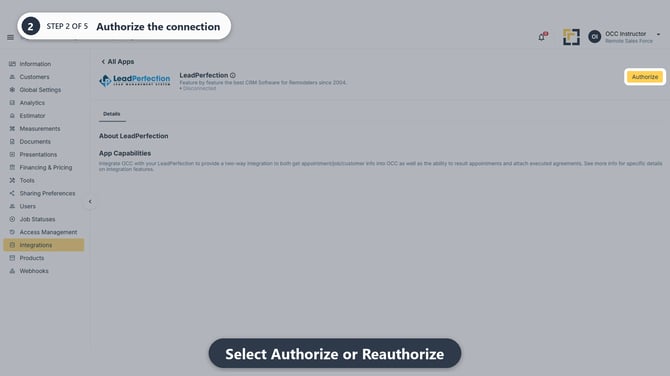
Choose Authorize or Reauthorize for the connection state.
Enter the LeadPerfection Username, Password, and Client ID. Use the credentials supplied for the integration.
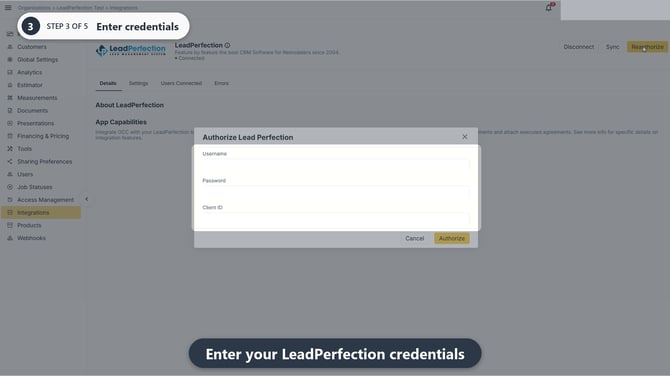
Enter the LeadPerfection credentials.
Select Authorize. This submits the connection request.
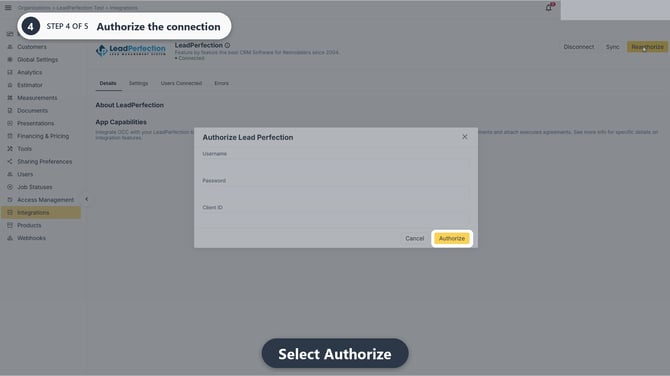
Authorize the LeadPerfection connection.
Select Sync and confirm Sync Requested Successfully. Authorization alone does not complete employee synchronization.
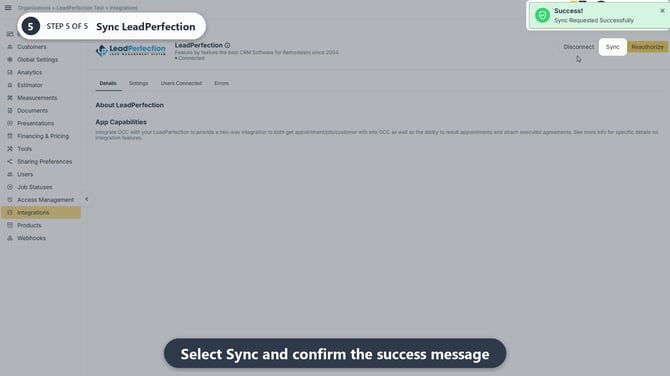
Run the initial LeadPerfection synchronization.
Current employee synchronization behavior
-
Only active LeadPerfection employees are retrieved. Employees marked inactive in LeadPerfection are ignored.
-
When an active LeadPerfection employee email matches an OCC user email, OCC automatically links the users.
-
Running Sync remains required after authorization; automatic matching occurs during synchronization, not merely by saving credentials.
Remember
What you see can differ depending on your organization's settings and your permission level. Tab names, headers, and available options are configurable. If you cannot see or do something described here, ask your manager first. They can contact support.