![Icon for Courses-1.png]](https://help.oneclickcontractor.com/hs-fs/hubfs/Icon%20for%20Courses-1.png?width=36&height=36&name=Icon%20for%20Courses-1.png)
Requirements
-
A LendKey application with available offers.
-
Accurate project cost and down-payment details before sending financing documents.
Select a LendKey Offer
Step 1: Review the LendKey offer tiles with the customer.
👉 Each tile shows the term, APR, payment, and credit limit.
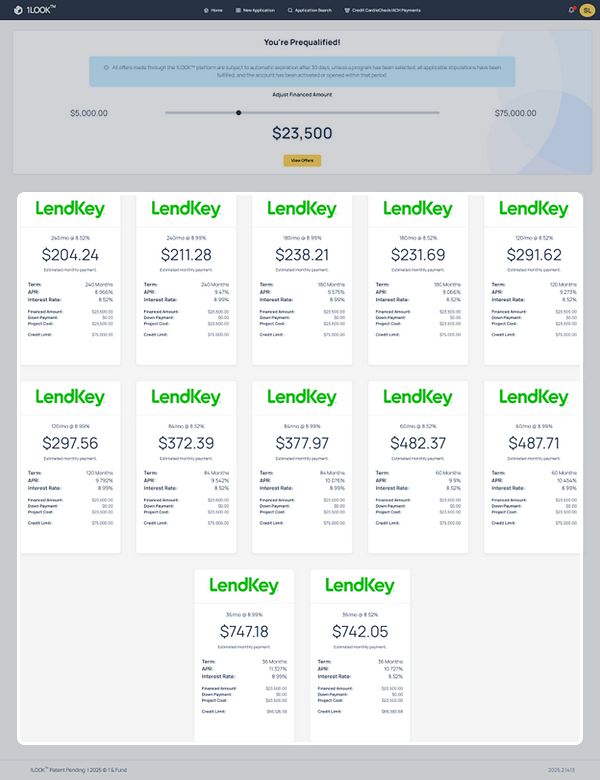
Image description: LendKey offer tiles display the available financing terms, payments, APRs, and credit limits.
Step 2: Adjust the financed amount when a down payment is needed. Type an amount or use the slider and review the updated amount.
👉 Shaded fields in an offer tile indicate the down-payment requirement.
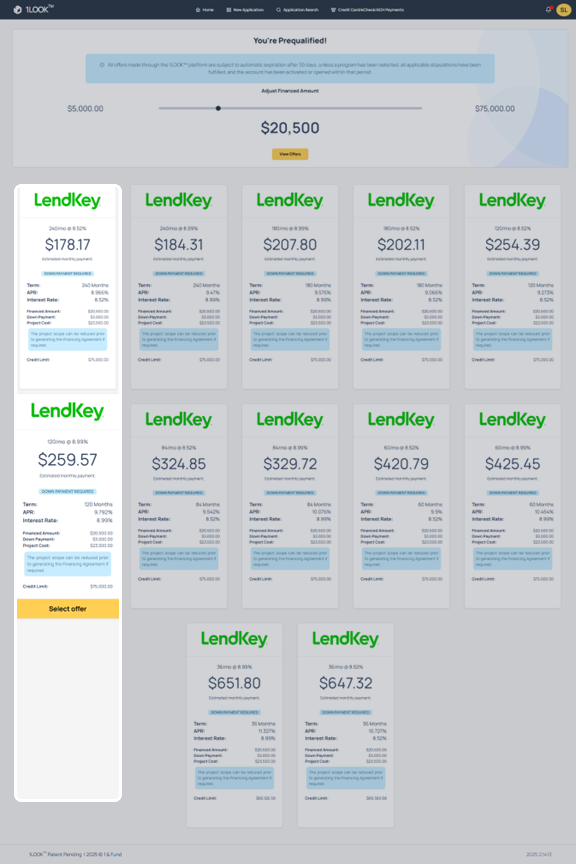
Image description: The Adjust Financed Amount slider and updated amount change before offer selection.
Step 3: Select the desired LendKey offer and Select Offer..
Send the Financing Agreement
Step 4: Review the Financing Agreement. Confirm loan terms, project details, and Total Project Cost. Use the edit pencil to update the project cost when needed.
👉 Updating Total Project Cost automatically updates the down payment.
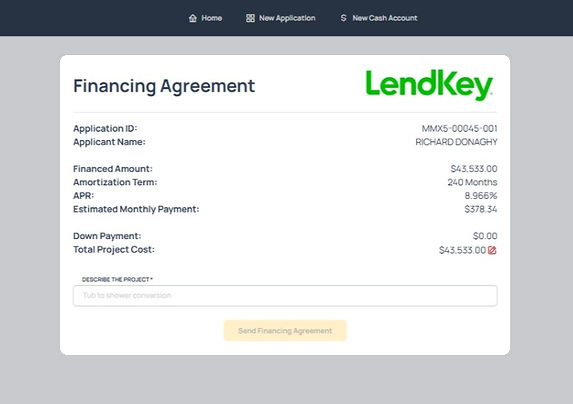
Image description: The LendKey Financing Agreement shows loan terms, editable project cost, and project-description details.
Step 5: Select Send Financing Agreement. This opens the borrower setup link for the LendKey site.
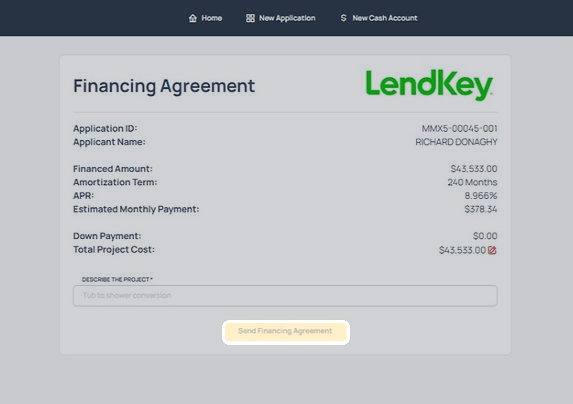
Image description: Send Financing Agreement opens the LendKey borrower-setup process.
Complete Borrower Setup
Step 6: Select Launch Lender Portal and hand the device to the customer. If the sales rep is not with the customer, the customer receives an email link instead.
👉 LendKey may require verification of the borrower identity or residency.
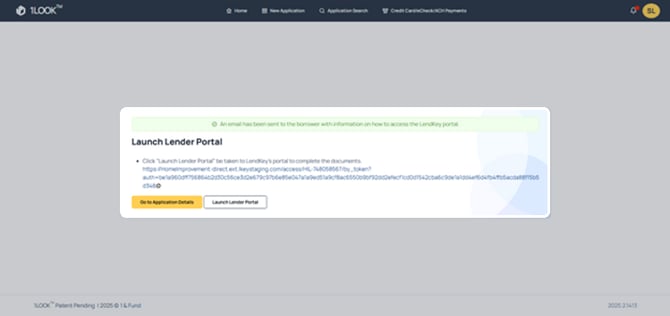
Image description: Launch Lender Portal provides the borrower link for LendKey account setup.
Upload the Sales Invoice
Step 7: Select Sales Invoice in Stipulations and upload the document.
👉 LendKey uses the invoice to verify property address, scope of work, borrower name, signed contract, and appropriate loan amount. Photos must show all four corners, be clear, and have no crossed-out information.
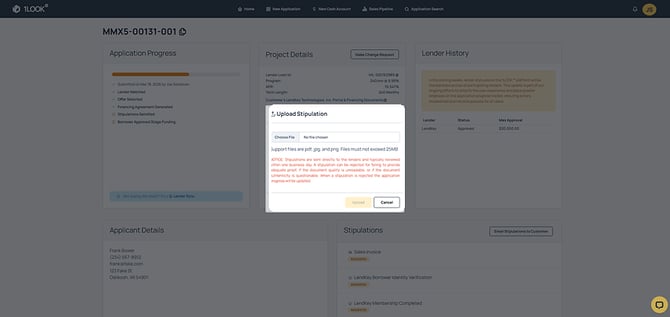
Image description: The Upload Stipulation dialog is used to add the required LendKey Sales Invoice.
Remember
What you see can differ depending on your organization's settings and your permission level. Tab names, headers, and available options are configurable. If you cannot see or do something described here, ask your manager first. They can contact support.