![Icon for Courses-1.png]](https://help.oneclickcontractor.com/hs-fs/hubfs/Icon%20for%20Courses-1.png?height=40&name=Icon%20for%20Courses-1.png)
Setting up the ImproveIt 360 Lightning Integration
The setup and configuration of ImproveIt360 Lightning is setup in 2 parts. The first part of the configuration is the setup on the ImproveIt360 side. The final part connects that information back to OCC.
ImproveIt360 Configuration
The following steps MUST be performed while logged in as an ImproveIt360 Admin User
1. Once logged in as an Admin, click the Gear in the top right corner
2. From the drop down, click "Setup"
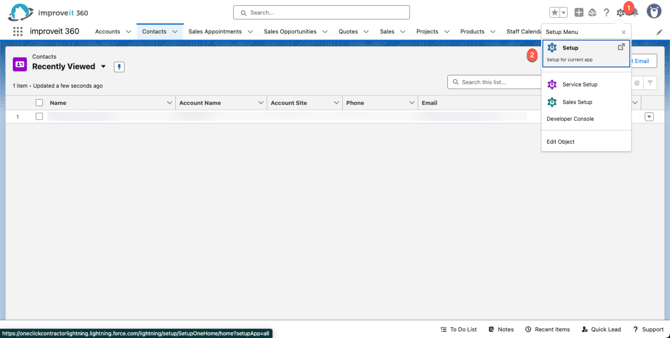
3. From the Setup screen, scroll down and expand the "Apps" Section
4. From the Apps Section, click on the "External Client Apps" and Click "Settings"
5. Toggle the "Connected Apps" option to ON and click Enable
6. Click the "Create a Connected App" option
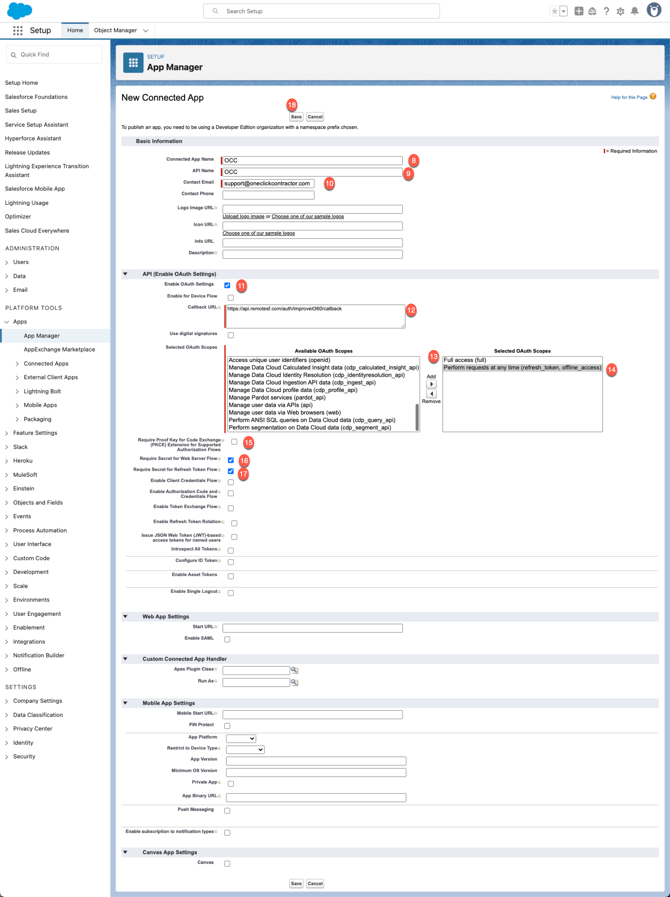
7. From the "New Connected App" screen, under the "Basic Information" enter "OCC" in the Connected App Name box
8. Set the API Name to "OCC" (should default)
9. Set the Contact Email to "support@oneclickcontractor.com"
10. Under the "API (Enable OAuth Settings)" check the "Enable OAuth Settings" box
11. Under the "Callback URL" add https://api.remotesf.com/auth/improveit360/callback in the callback box
12. Under the "Selected OAuth Scopes" ensure that "Full access (full)" permission has been added
13. Under the "Selected OAuth Scops" ensure that "Perform Requests at any time (refresh_token, offline_access)" has been added
14. Ensure that "Require Proof Key for Code Exchange (PKCE) Extension for Supported Authorization Flows" is unchecked
15. Ensure that "Require Secret for Web Server Flow" is checked
16. Ensure that "Require Secret for Refresh Token Flow" is checked
17. Click "Save" at the top of the list
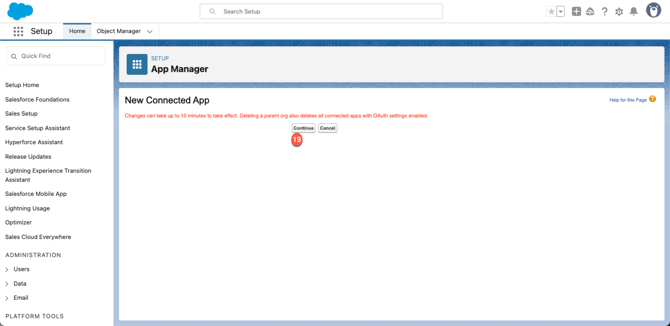
18. After it has been added, click "Continue" (Note: That it states it can take up to 10 minutes for that update to take effect)
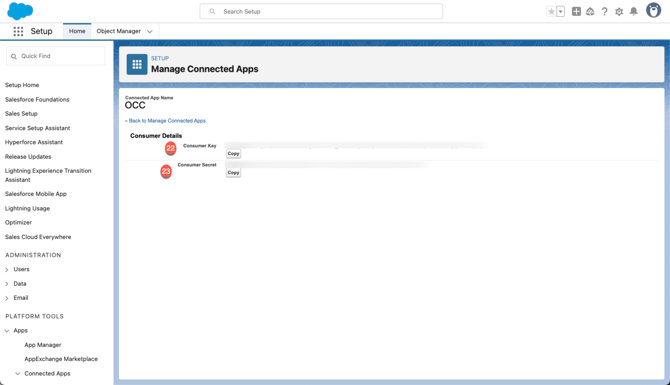
19. After saved, click the "Manage Consumer Details" to get the Consumer Key and Secret
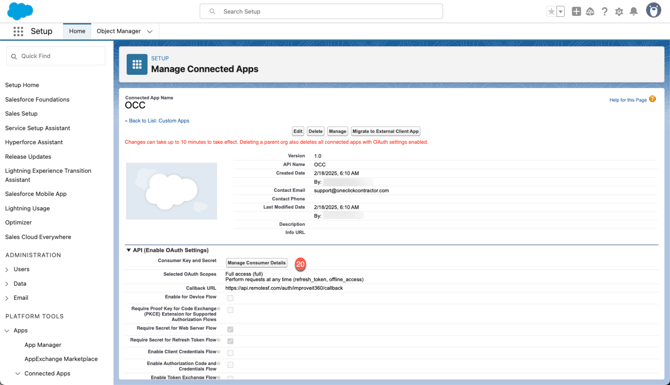
20. You may get a message requesting Two Factor Authentication, enter the appropriate information.
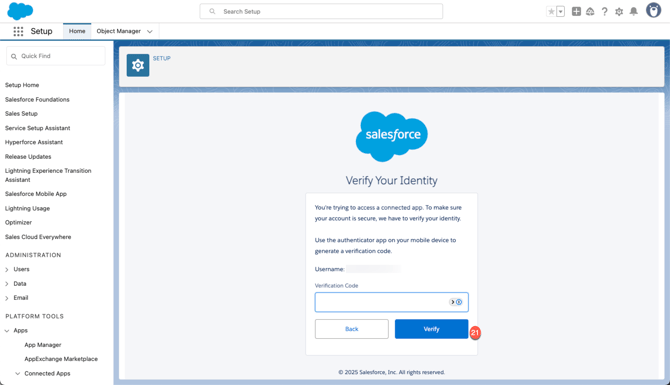
21. Click the copy button next to the Consumer Key and paste it somewhere safe
22. Click the copy button next to the Consumer Secret and paste it somewhere safe
Setting up One Click Contractor
1. Logged in as an Org Admin in One Click, click the "Administration" button in the top right corner
2. From administration, click the "Integrations" tab at the left
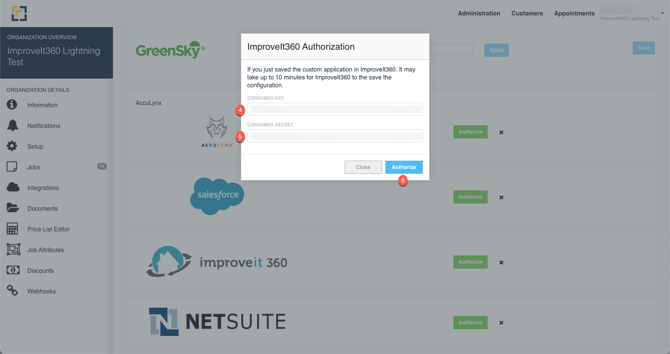
3. Scroll down on the Integrations tab and click the "Authorize" button next to ImproveIt360

4. From the authorization modal, enter the consumer key in the "Consumer Key" field
5. Enter the consumer secret in the "Consumer Secret" field
6. Click the "Authorize" button
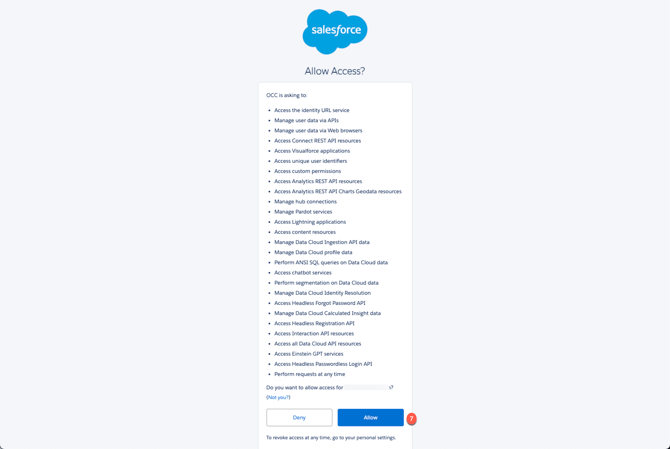
7. You should be redirected to a Salesforce screen where you need to grant access by clicking the "Allow" button
8. Once redirected back to OCC, scroll down to the ImproveIt360 section and click the "Gear Icon" next to it
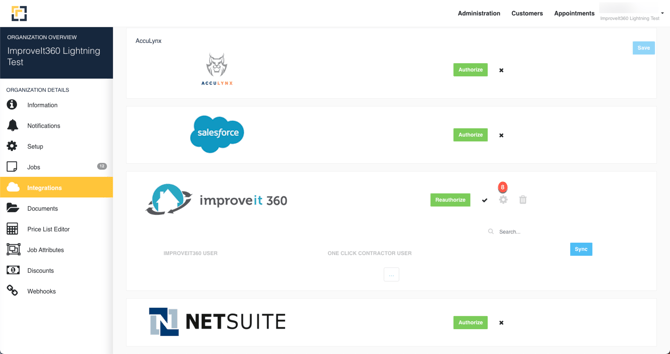
9. On the ImproveIt360 Settings Modal, change the platform to "Lightning"
10. Click Save Changes
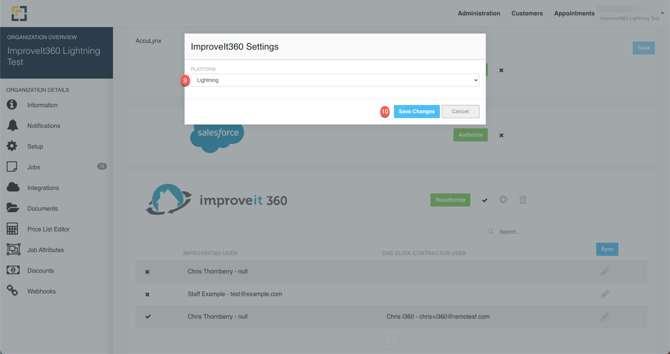
11. Once saved, click the "Sync" button next to ImproveIt360.
Note that users do not automatically match between OCC and I360 Lightning. You will have to manually connect them.
Then, every 15 minutes, information will be synchronized over from I360.
How it Works
Generally speaking, an opportunity is created in I360 Lightning with a corresponding Appointment. That appointment creates and populates the Job in OCC.
In order for a job to be created in OCC, the following data elements must be completed:
- The user from ImproveIt360 Lightning MUST be mapped to a user in OCC and their mapping must be active.
- We look for updated i360__Appointment__c records that have been updated
- We then iterate over all of the active ImproveIt360 Lightning Users we have mapped and look for appointments based on the appointment.i360core__Sales_Rep_1__c value (this is the first sales rep assigned to the appointment).
- For each appointment we utilize the following mapping to create a job in OCC:
- Customer Name: {appointment.i360core__Contact_Name__c}
- Name: {appointment.i360core__Contact_Name__c}: {appointmenti360core__Product_Categories__c}
- Email: {appointment.i360core__Contact_Email__c}
- Lead Source: (there is no mapping)
- Job Address:
- Line 1: {appointment.i360core__Street_Address__c}
- City: {appointment.i360core__City__c}
- State: {appointment.app.i360core__State_Province__c}
- Postal Code: {appointment.i360core__Zip_Postal_Code__c}
- Phone Number (iterate over the appointment.Contact_Phone__c): these values are split on a comma (,) and then the name / number are split on a colon (:)
- Name: (first value from the split on colon)
- Number: (second value from the split on colon)
- Assigned User: appointment.i360__Sales_Rep_1__c
- Metadata:
- i360_lightning_account:: {appointment.i360core__Account__c}
- i360_lightning_salesrep_id: {appointment.i360core__Sales_Rep_1__c}
- Appointment:
- Start Time: {appointment.i360core__Appointment_Date_Time__c}
- End Time: {appointment.i360core__Appointment_End_Date_Time__c}
- Summary: {appointment.i360core__Contact_Name__c}: {appointment.i360core__Product_Categories__c} - {appointment.i360core__Type__c}
- Sales Opportunities: We iterate over the appointment.i360core__Sales_Appointment_Opportunities__r object and store this with the appointment
- id: i360core__Sales_Opportunity__r.Id
- name: {i360core__Sales_Opportunity__r.i360core__Interested_In__c}: {i360core__Sales_Opportunity__r.Name}
- result: {i360core__Sales_Opportunity__r.i360core__Result__c}
- result_detail: {i360core__Sales_Opportunity__r.i360core__Result_Detail__c}
- Metadata:
- improveit360_appointment_id: {appointment.Id}
When OCC and I360 Lightning is manually synced, the following occurs:
- Pull ResultReasons: This pulls 2 different queries:
- Results: client.picklist_values('i360core__Sales_Appointment__c', 'i360core__Status__c')
- The following mapping is utilized to store the information on the organization:
- description: result.value
- position: index (the order t is returned from the query)
- The following mapping is utilized to store the information on the organization:
- Results Details:It iterates over the results (from the above query) and performs client.picklist_values('i360core__Sales_Appointment__c', 'i360core__Status_Detail__c', valid_for: result.description)
- The following mapping is utilized to store the information on the organization:
- description: result.value
- position: index (the order t is returned from the query)
- result_id: linked to the appropriate result object above
- The following mapping is utilized to store the information on the organization:
- Results: client.picklist_values('i360core__Sales_Appointment__c', 'i360core__Status__c')
- Pulls Sales Opportunity Results: This pulls 2 different queries:
- Results: client.picklist_values('i360core__Sales_Opportunity__c', 'i360core__Result__c')
- The following mapping is utilized to store the information on the organization:
- description: result.value
- position: index (the order t is returned from the query)
- The following mapping is utilized to store the information on the organization:
- Results Details:It iterates over the results (from the above query) and performs client.picklist_values('i360core__Sales_Opportunity__c', 'i360core__Result_Detail__c', valid_for: result.description)
- The following mapping is utilized to store the information on the organization:
- description: result.value
- position: index (the order t is returned from the query)
- result_id: linked to the appropriate result object above
- The following mapping is utilized to store the information on the organization:
- Results: client.picklist_values('i360core__Sales_Opportunity__c', 'i360core__Result__c')
- Pulls Users: Makes the following SOQL query to ImproveIt360 Lightning (client.query('SELECT Id, Name, i360core__Email__c FROM i360core__Staff__c')). The following mapping is utilized:
- crm_id: i360core__Staff__c.Id
- name: i360core__Staff__c.Name
- email: i360core__Staff__c.i360core__Email__c
- Pulls Appointments: Pulls appointments which have been updated between 29 days previous and the current time (with handling of an overlap of 5 minutes) for users in OCC which are “actively” mapped between ImproveIt360 Lightning and OCC.
Summary
From I360 to OCC:
- Users
- Jobs
- Appointments
- Sales Process Stages
From OCC to I360:
- Sales Process Stages
- Documents
- Total Quoted Price