![Icon for Courses-1.png]](https://help.oneclickcontractor.com/hs-fs/hubfs/Icon%20for%20Courses-1.png?height=40&name=Icon%20for%20Courses-1.png)
Setting up the Lead Perfection Integration
What you'll need from Lead Perfection:
- Lead Perfection Client ID (Just the ID...do not use the full URL)
- Username (should be defaulted to OneClick)
- Password
- Document Type ID(s) (please ensure users in Lead Perfection have permissions to access this!)
- Time Zone
1. With the information you gathered, go to the organization inside of OCC and browse to the Integrations Tab.
2. On the Integrations tab, scroll down to the “Lead Perfection” section
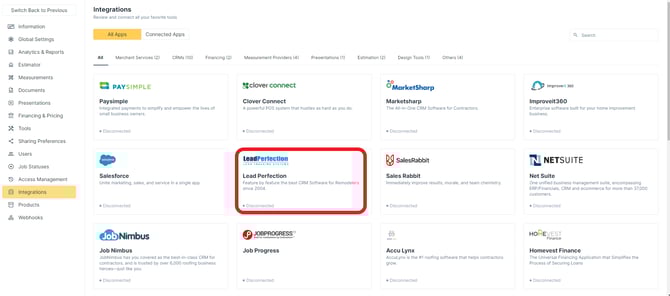
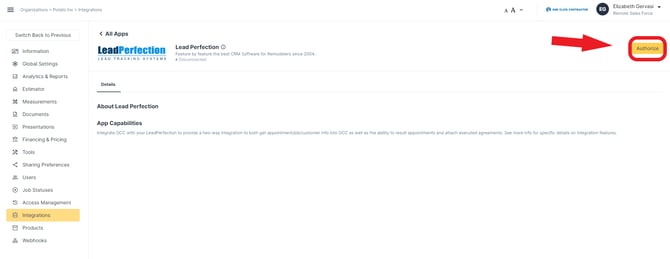
a. Enter the Username, Password, and Client ID in the appropriate boxes.
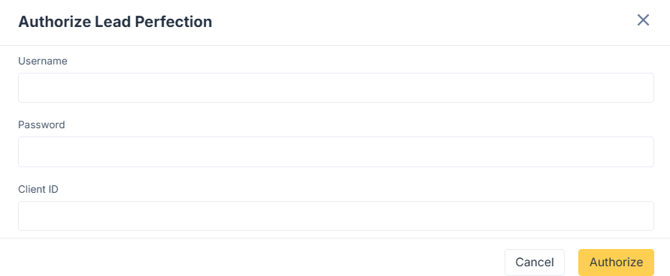
b. Now click the “Authorize” button for it to make the request to pull down a list of users and other data from their system.
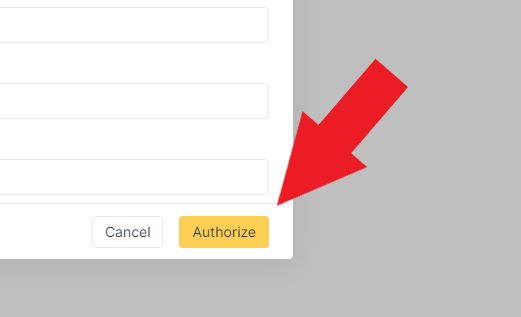
c. Scroll up to the top and click “Save Changes”
d. After a few moments, refresh the page and you should see a list of users from the LeadPerfection system.
i. Note: This integration cannot automatically match LP users with OCC. Lead Perfection does not provide user emails.
ii. You can click the “pencil” icon next to the LeadPerfection user and manually match with the appropriate OCC users.
How it Works
Generally speaking, a job starts in Lead Perfection as a Lead with an Appointment, and that Appointment creates a corresponding Job in One Click Contractor. One Click looks for appointments from 2 days prior through 30 days in the future.
| OCC Object | OCC Field (can be populated from LP) | Lead Perfection Field (source) |
| User Object Linking | ||
| User | crm_id | User.key |
| User | name | User.value |
| Job Object | ||
| Job | customer_name | Appointment.CustName |
| Job | name | Appointment.CustName: Appointment.ProductId |
| Job | Appointment.email,Appointment.email2 | |
| Job | lead_source | Appointment.Source: Appointment.SubSource |
| Job | metadata.lead_perferction_id | Appointment.id |
| Job | metadata.lead_perfection_salesperson | Appointment.SalesRepName |
| Job Address | ||
| Job Address | line_1 | Appointment.Address1 |
| Job Address | line_2 | NOT USED |
| Job Address | city | Appointment.CSZ |
| Job Address | state | Appointment.CSZ |
| Job Address | postal_code | Appointment.CSZ |
| Job Phone (Multiple records are created if available) | ||
| Job Phone | name | Phone |
| Job Phone | number | Appointment.Phone |
| Job Phone | name | Appointment.AltPhone1Type |
| Job Phone | number | Appointment.AltPhone1 |
| Job Phone | name | Appointment.AltPhone2Type |
| Job Phone | number | Appointment.AltPhone2 |
| Job Appointments (Can be Multiple) | ||
| Appointment | summary | NOT USED |
| Appointment | notes | Appointment.Notes |
| Appointment | start_time | Appointment.ApptDate |
| Appointment | end_time | start_time + 2 Hours and converted based on the company's time zone |
| Appointment | metadata.lead_perfection_id | Appointment.id |
| Notes (Multiple notes can be created) | ||
| Note | note | Appointment.notes |
| Note | metadata.lead_perfection_id | Appointment.id |
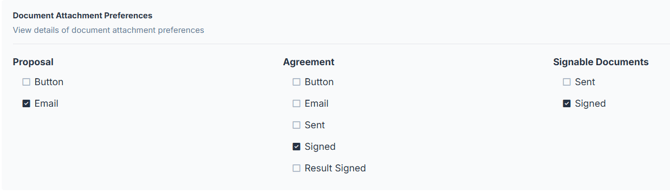
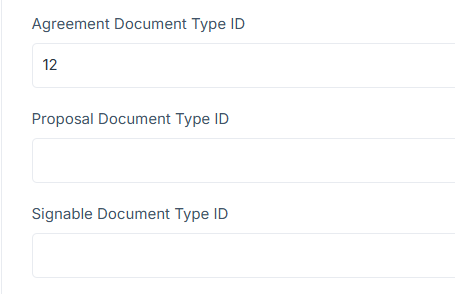
When the user works a job in One Click Contractor, documents can go back to the corresponding Lead Perfection record based on the settings on the user's org in OCC and the Document Type IDs entered for each document type. In the below example, Signed Agreements would go to the documents section in Lead Perfection with the document title that corresponds to the Document Type ID 12 in Lead Perfection. In this example, Proposals and Signable documents do not have a Document Type ID entered in OCC, so they would also default to ID 12 for a name in Lead Perfection.
The ONLY other data points in OCC that go BACK to Lead Perfection are the result/result reason on an appointment, and the "Notes" field (which also can be populated IN OCC from Lead Perfection, see chart above). The content in the OCC "Notes" section maps to the "presnotes" location in LeadPerfection.
Result/Result reason:
Under the appointments tab, each of the appointments from Lead Perfection will have an icon to result each of those appointments. Once that change is saved it is accessible on the Appointment back in Lead Perfection, in the "Disp" (disposition) field.
The Summary
From Lead Perfection to One Click Contractor:
- Job creation
- Job Details (Customer, contact info, address, etc)
- Appointment Info
- Notes
From One Click Contractor to Lead Perfection:
- Documents
- Notes
- Appointment Result