![Icon for Courses-1.png]](https://help.oneclickcontractor.com/hs-fs/hubfs/Icon%20for%20Courses-1.png?width=36&height=36&name=Icon%20for%20Courses-1.png)
Step by step
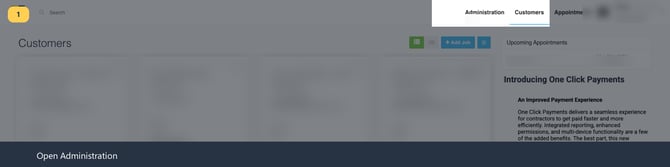
Step 1: Open Administration. While signed in to OCC as an Org Admin, select Administration in the upper-right corner.
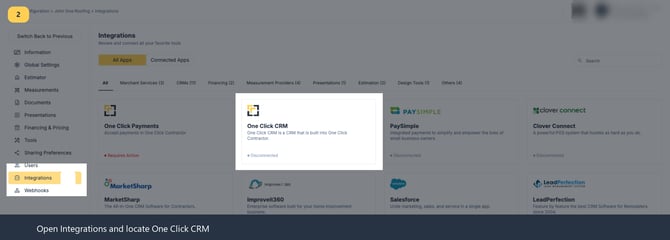
Step 2: Open Integrations and locate One Click CRM. In Administration, select Integrations in the left navigation, then open the One Click CRM card.
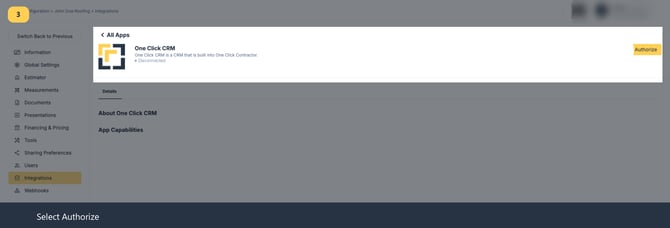
Step 3: Select Authorize. On the One Click CRM integration card, select Authorize in the upper-right corner.
Step 4: Confirm the authorization redirect. When OCC says it will redirect you to One Click CRM, select OK to continue.
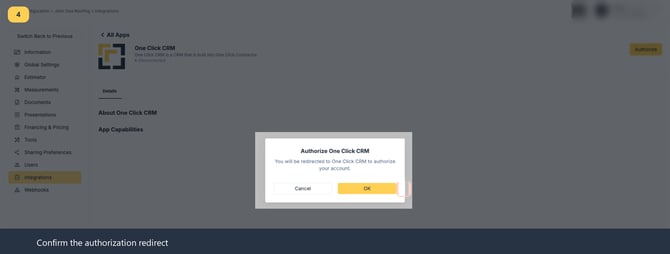
Step 5: Sign in to One Click CRM if prompted. Select Login and complete the sign-in steps required by the platform.

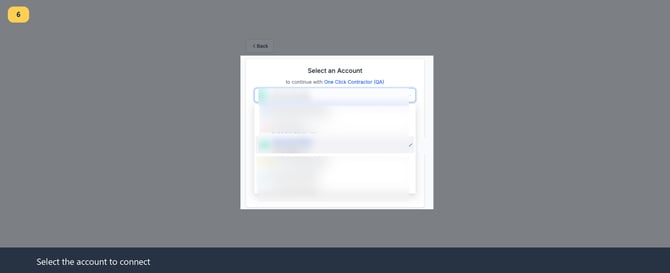
Step 6: Choose the One Click CRM account to connect. If more than one account is available, select the account that should connect to this OCC organization.
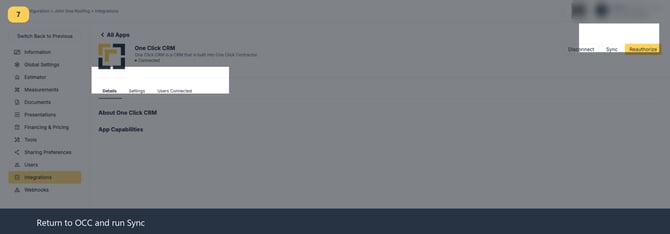
Step 7: Run the initial synchronization. After authorization returns you to OCC Integrations, select Sync on the One Click CRM card. This retrieves users and Opportunities assigned to users during the prior 29 days.
Step 8: Configure document attachment preferences and save. Open Settings, expand Document Attachment Preferences, and choose which document events should upload PDFs to One Click CRM. Then select Save Changes.
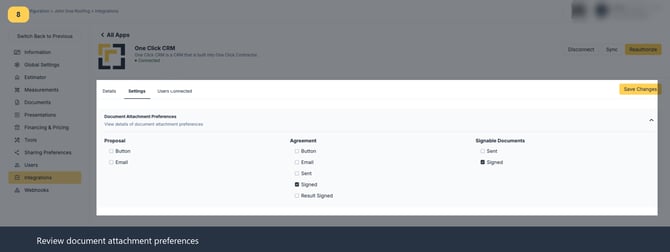
Document attachment options
Proposal: Button makes a PDF available for manual upload from the Proposals tab. Email uploads a copy when a proposal is emailed.
Agreement: Button makes a PDF available for manual upload from the Agreements tab. Email uploads a copy when an agreement is emailed. Sent uploads a copy when an agreement is sent for signature. Signed uploads a copy after the agreement is fully executed.
Signable Documents: Sent uploads a copy when a signable document is sent for signature. Signed uploads a copy after it is fully executed.
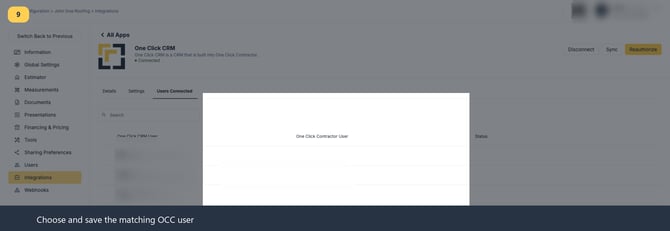
Step 9: Review Users Connected and map any unmatched users. Select Users Connected to review the CRM and OCC user associations. Users with matching email addresses are linked automatically. To link a user manually, edit the CRM user row, select the matching OCC user, and save the association.