![Icon for Courses-1.png]](https://help.oneclickcontractor.com/hs-fs/hubfs/Icon%20for%20Courses-1.png?width=36&height=36&name=Icon%20for%20Courses-1.png)
Users and user mapping
When are users synchronized between One Click CRM and OCC?
Users synchronize every day at 9:00 AM UTC. Users are also added through webhooks after they are added in One Click CRM and linked to OCC.
Which One Click CRM users are synchronized?
All users added to One Click CRM are synchronized to OCC.
How are users matched between One Click CRM and OCC?
OCC compares a CRM user’s email address with the email addresses of available OCC users. When the addresses match, the accounts are linked automatically.
Can I manually map a user?
Yes. Use the One Click CRM integration card to associate a CRM user with an OCC user when automatic email matching did not link the accounts.
Step 1: Open Users Connected
On the One Click CRM integration card in OCC Integrations, select Users Connected to view CRM users and their connection status.
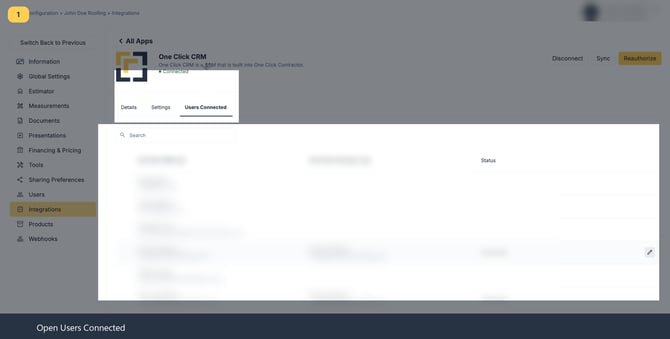
Image description: Open the Users Connected tab.
Step 2: Edit the CRM user association
Find the user who needs a mapping and select the edit (pencil) control on that row.
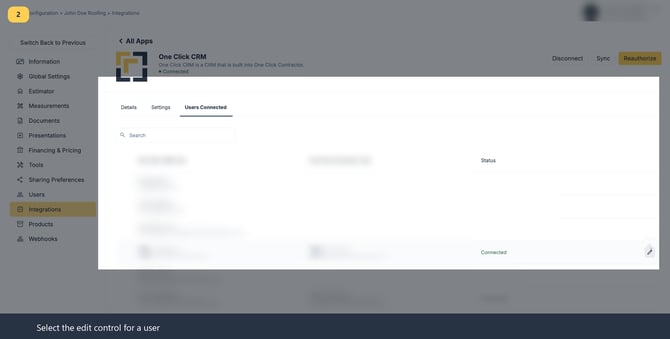
Image description: Select the edit control for a CRM user.
Step 3: Select and save the matching OCC user
In the One Click CRM User Match dialog, select the correct One Click Contractor user, keep the mapping Active, and select Save.
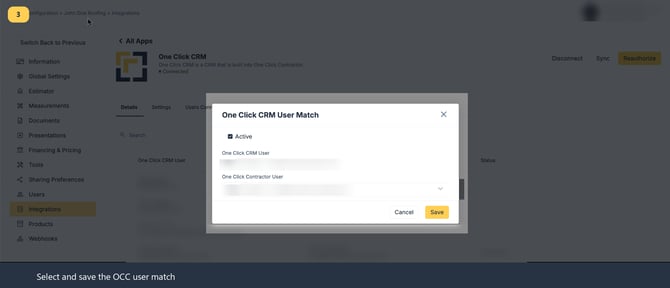
Image description: Select and save the matching OCC user.
Document uploads
Can OCC upload documents back to One Click CRM?
Yes. OCC can upload PDFs to the associated One Click CRM contact. Document Attachment Preferences determine which document actions trigger an upload.
How do I configure document uploads?
On the One Click CRM integration card, open Settings and expand Document Attachment Preferences. Select the applicable options for proposals, agreements, and signable documents, then save the changes. The settings include manual Button uploads and automatic uploads for the configured Email, Sent, or Signed events.
Step 4: Review Document Attachment Preferences
Open the Settings tab on the One Click CRM card and expand Document Attachment Preferences to review the selected events.
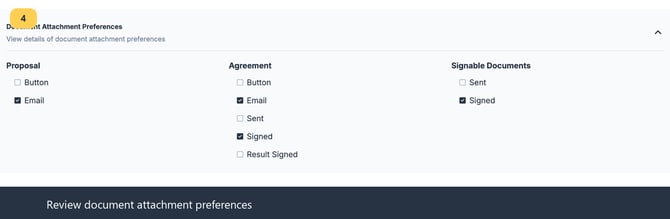
Image description: Review the document attachment preference selections.
Where are uploaded documents stored in One Click CRM?
Documents uploaded from OCC are attached to the Contact associated with the Opportunity.
Step 5: Open the Contact’s Documents area
In One Click CRM, open the Contact associated with the Opportunity and select its Documents area to view attached files.
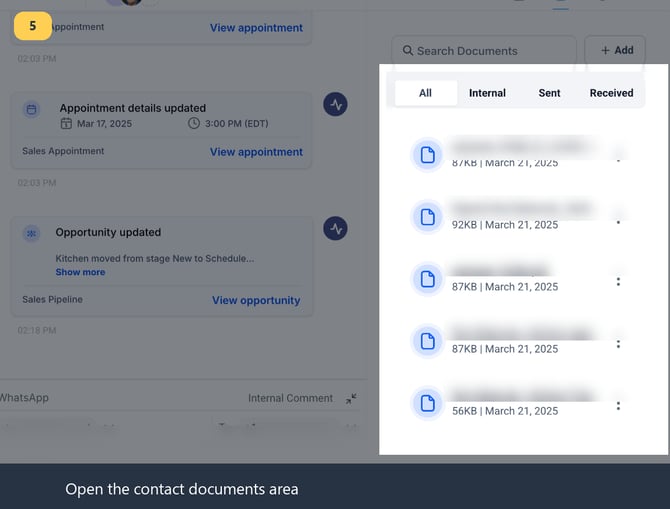
Image description: Open the contact documents area in One Click CRM.
Synchronization and job creation
What does Sync do?
Selecting Sync on the One Click CRM integration card starts the initial synchronization. It pulls all users from One Click CRM and links users whose email addresses match. It also pulls Opportunities for OCC users who are actively mapped between One Click CRM and OCC.
Step 6: Run a manual synchronization
On the One Click CRM integration card, select Sync to request a synchronization instead of waiting for the next automatic update.
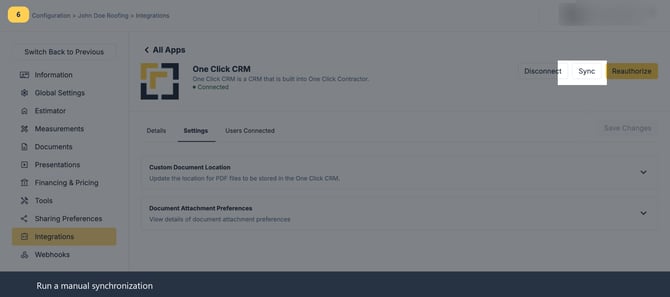
Image description: Select Sync to run a manual synchronization.
Do changes made in OCC sync back to One Click CRM?
No. Changes made in OCC are not pushed back to One Click CRM. OCC status changes are also not synchronized to One Click CRM.
My job has not appeared in OCC. Can I expedite job creation?
Select Sync to force a synchronization. After the integration is configured, a qualifying job should appear within about a minute.
What information is required to create an OCC job?
A job is created from the combination of an Opportunity and a Contact. The Opportunity must have an owner linked to a user in OCC. By default, the integration uses the following mapping to create or update the OCC job:
Customer and job details
-
Customer name: {contact.firstName} {contact.lastName}
-
Job name: {contact.firstName} {contact.lastName}: {opportunity.name}
-
Email: {contact.email}
-
Lead source: {opportunity.source}
-
Job address
-
Address line 1: {contact.address1}
-
City: {contact.city}
-
State: {contact.state}
-
Postal code: {contact.postalCode}
-
Phone and assignment
-
Phone name: Phone
-
Phone number: {contact.phone}
-
Assigned user: opportunity.assignedTo
-
Record metadata
-
Opportunity metadata: one_click_crm_opportunity_id: {opportunity.id}
-
Contact metadata: one_click_crm_contact_id: {contact.id}
-
Appointment details
-
Summary: {event.title} [{event.appointmentStatus}]
-
Notes: {event.notes}
-
Start time: {event.startTime}
-
End time: {event.endTime}
-
Appointment metadata: one_click_crm_event_id: {event.id}; one_click_crm_contact_id: {event.contactId}
Can I use other field mappings?
The backend currently supports custom mappings, but custom mappings are not available in the configuration screens.
How quickly do CRM updates appear in OCC?
Updates are sent through webhooks and should appear on the associated OCC job within seconds and in less than a minute.
What happens when an Opportunity owner changes?
The changed owner should be reflected in OCC in near real time, within about a minute. The new owner must be actively linked between One Click CRM and OCC.
Step 7: Review the Opportunity owner
In One Click CRM, confirm the Opportunity is assigned to the intended owner. The owner must have an active OCC user mapping for the assignment to apply.
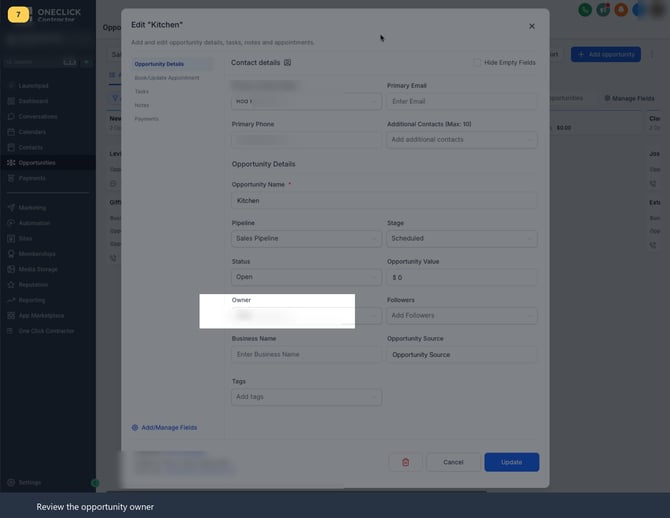
Image description: Review the owner on a One Click CRM Opportunity.
Can I filter which jobs are pulled into OCC?
The current One Click CRM integration does not provide a setting to filter or selectively pull jobs into OCC.
What happens if an Opportunity is deleted?
When an Opportunity is deleted in One Click CRM, OCC finds and archives the associated job.
What happens if an appointment is deleted or cancelled?
Appointments cannot currently be deleted in One Click CRM. Change the appointment status to Cancelled instead. The cancelled status is reflected in the appointment title in OCC.
Step 8: Set the appointment status to Cancelled
Open the appointment in One Click CRM, set Status to Cancelled, and select Save Appointment.
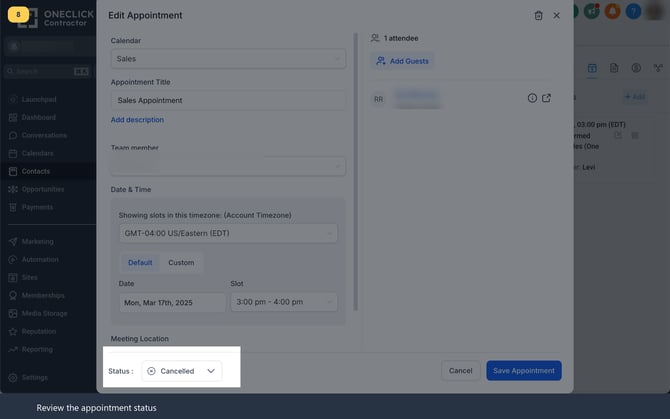
Image description: Set appointment Status to Cancelled and save the appointment.
Step 9: Confirm the cancelled status in OCC
After synchronization, the OCC appointment title shows the cancelled status.
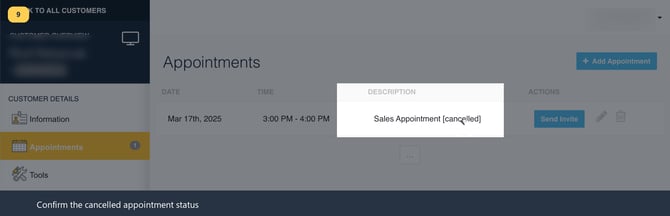
Image description: Confirm the appointment title displays the cancelled status.