![Icon for Courses-1.png]](https://help.oneclickcontractor.com/hs-fs/hubfs/Icon%20for%20Courses-1.png?height=40&name=Icon%20for%20Courses-1.png)
Article Introduction
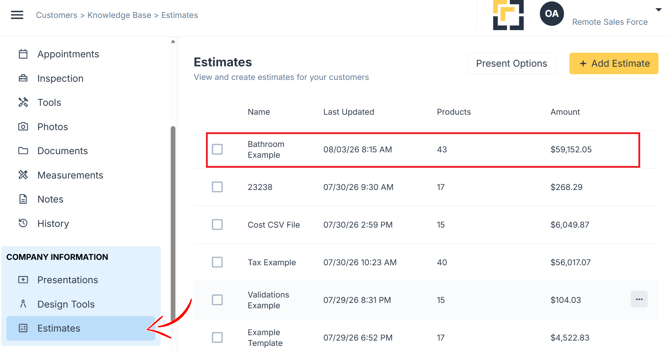
Open the customer job and select the Signatures tab from the Estimator’s left panel.
The Signatures tab mirrors the names of the estimates created for the job. Select the estimate associated with the agreement you want to prepare for signature.
Select the Agreement
Locate the estimate name that corresponds to the agreement you want to prepare, then select it.
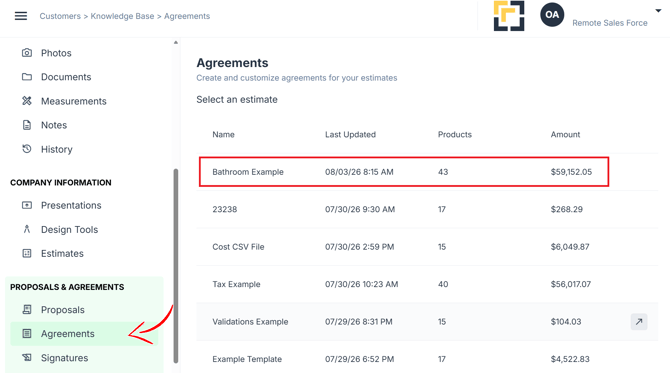
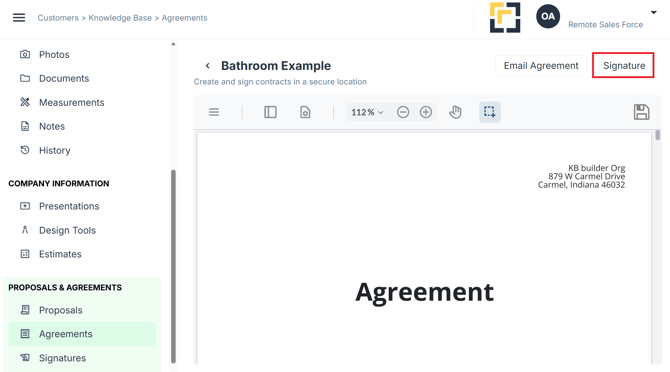
From the agreement, you will have options to:
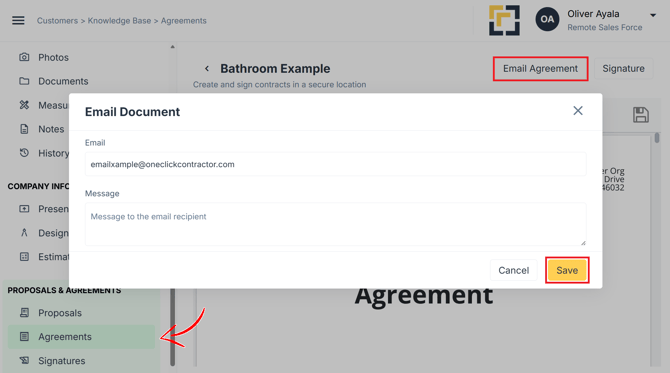
- Select Email Agreement to share the agreement by email
- Select Signature to open the Signature Request window
To prepare the agreement for electronic signature, select Signature.
Send by Email
-
Select Email to send the signature request to all included signing parties.
-
Click Save to send the email.
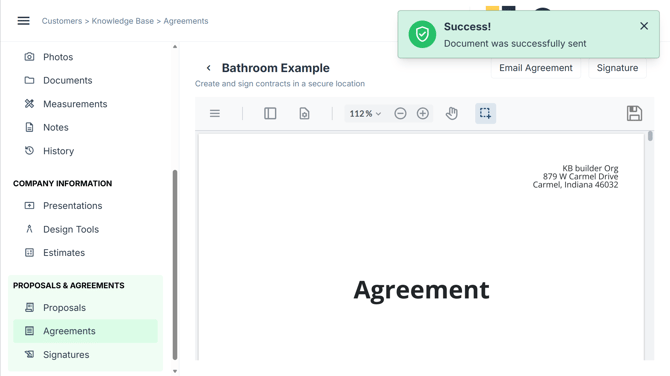
A system verification of success will pop-up.
Sign Onscreen
Select the signature option.
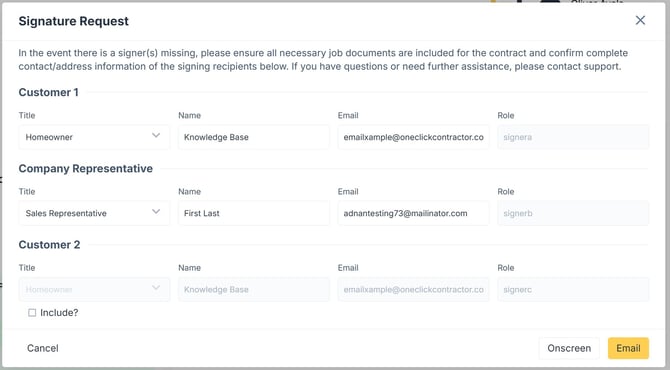
The Signature Request screen allows you to review the signer's information.
-
Click Onscreen to pull up the document signature section; OR,
-
Click Email to send the email to all parties.
Note: the onscreen signature is explored in a different article.