![Icon for Courses-1.png]](https://help.oneclickcontractor.com/hs-fs/hubfs/Icon%20for%20Courses-1.png?width=36&height=36&name=Icon%20for%20Courses-1.png)
Requirements
-
Access to the application or invoice that contains the completed payment.
-
The invoice number or enough customer and transaction detail to locate the payment.
Refund a Customer Payment
Step 1: Open the completed payment invoice and select Refund. Locate the invoice from Application Details or Accounting Register, then open the invoice actions.
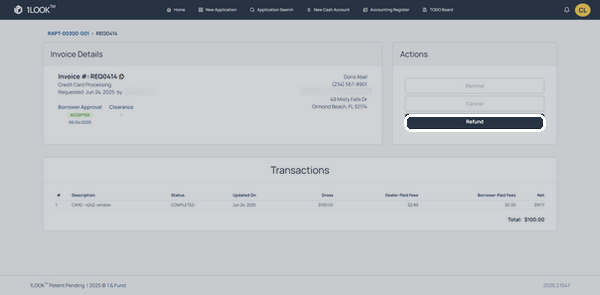
Image description: The invoice Actions panel displays the Refund option for a completed payment.
Step 2: Enter the refund reason and amount, then select Confirm. Review the amount before submitting the refund request.
👉 Refund processing typically takes two to four business days. A submitted card payment cannot be canceled; use this refund process instead.
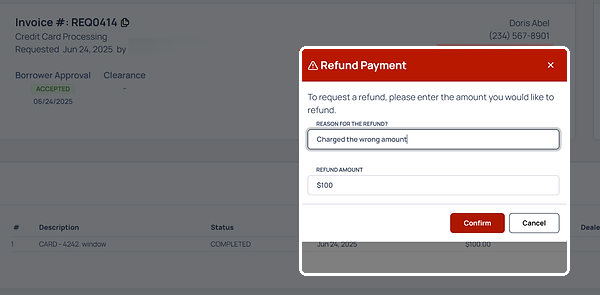
Image description: The Refund Payment dialog collects the refund reason and amount before confirmation.
Remember
What you see can differ depending on your organization's settings and your permission level. Tab names, headers, and available options are configurable. If you cannot see or do something described here, ask your manager first. They can contact support.