![Icon for Courses-1.png]](https://help.oneclickcontractor.com/hs-fs/hubfs/Icon%20for%20Courses-1.png?width=36&height=36&name=Icon%20for%20Courses-1.png)
Requirements
-
Access to Chargebacks from your account menu.
-
Supporting documents for the dispute, such as signed agreements, completion photos, or a written explanation.
Respond to a Chargeback
Step 1: Select Chargebacks from your account menu.
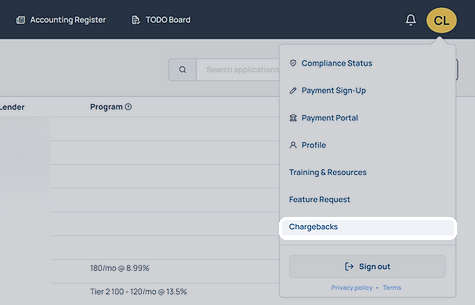
Image description: The account menu displays the Chargebacks option.
Step 2: Open the chargeback that requires action. Review its status, amount, customer, payment method, due date, and ARN before responding.
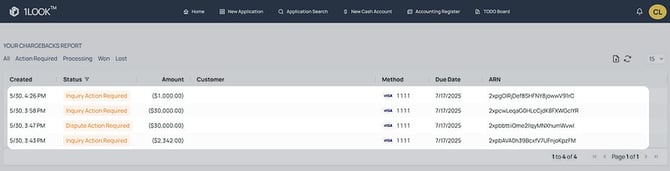
Image description: The Chargebacks report lists cases and their current action-required status.
Step 3: Add your evidence and submit the dispute response. Include the materials that support your position, then select Submit Dispute.
👉 Use the specific case details and submit only documentation relevant to that chargeback.
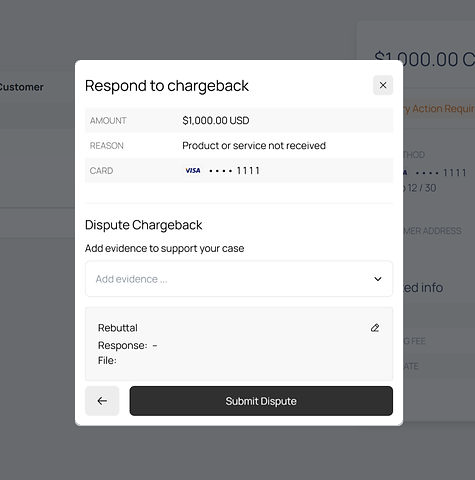
Image description: The Respond to chargeback dialog provides the evidence selector and Submit Dispute action.
Remember
What you see can differ depending on your organization's settings and your permission level. Tab names, headers, and available options are configurable. If you cannot see or do something described here, ask your manager first. They can contact support.