![Icon for Courses-1.png]](https://help.oneclickcontractor.com/hs-fs/hubfs/Icon%20for%20Courses-1.png?width=36&height=36&name=Icon%20for%20Courses-1.png)
Requirements
-
Access to Finance > Chargebacks and permission to respond to chargebacks.
-
Supporting documents and a clear description for each item of evidence submitted.
Review and respond to a chargeback
In Finance > Chargebacks, select the chargeback to review its status, amount, customer, billing fee, due date, and related payment. Use the status tabs to focus on items requiring attention.
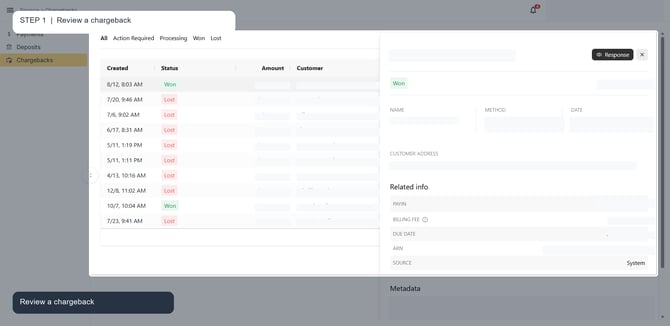
Image description: The Chargebacks list and selected chargeback detail panel are open, including the Response control.
In the chargeback details, select Response. If the chargeback is in error, choose to dispute it.
Add evidence to the response. For each item, choose the evidence type, provide a description, and upload the supporting document before submitting.
Evidence types
Evidence can include a receipt, cancellation policy, order form, proof of delivery, rental agreement, recurring billing agreement, CVV2 capture, authorization, or 3DS verification. Include a description and supporting document for every item submitted.
Remember
What you see can differ depending on your organization's settings and your permission level. Tab names, headers, and available options are configurable. If you cannot see or do something described here, ask your manager first. They can contact support.