![Icon for Courses-1.png]](https://help.oneclickcontractor.com/hs-fs/hubfs/Icon%20for%20Courses-1.png?width=36&height=36&name=Icon%20for%20Courses-1.png)
Review a payment and start a refund
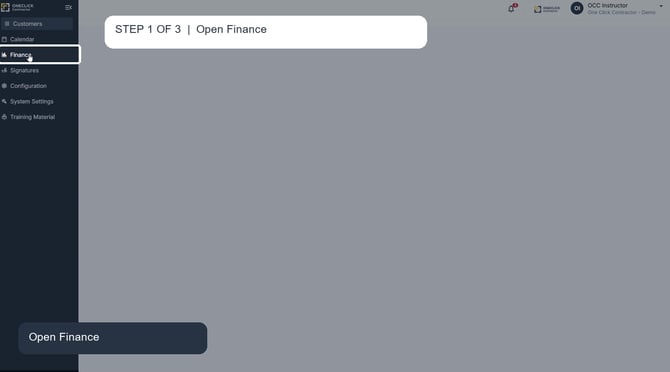
Step 1: In the main navigation, select Finance. Finance contains Payments, Deposits, and Chargebacks.
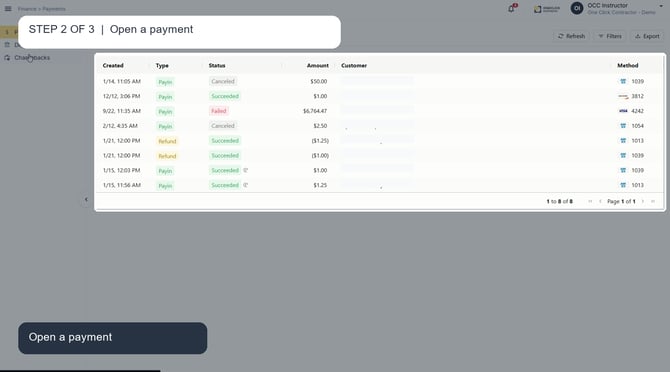
Step 2: select the transaction to open its details. Use the payment status, amount, and customer context to locate the correct transaction.
Step 3: In the payment details, select Refund only after the business confirms the transaction should be reversed. A successful payment cannot be corrected in place; confirm the decision before starting a refund.
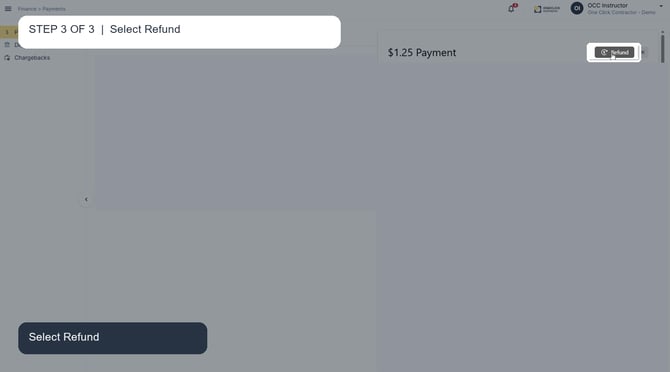
Before selecting Refund
Verify the payment status, amount, and customer before taking action. If a payment was processed successfully but netted less than expected, it cannot be corrected in place. A refund is the available action; confirm how the business wants to proceed before initiating it.
When the client can expect the refund
After the refund is initiated, the client should allow at least 3 business days for it to appear in their account. Processing time can vary by financial institution.
Remember
A refund affects a completed transaction. Do not start one to correct a reporting or deposit-display question without confirming the payment and the business decision first.