![Icon for Courses-1.png]](https://help.oneclickcontractor.com/hs-fs/hubfs/Icon%20for%20Courses-1.png?width=36&height=36&name=Icon%20for%20Courses-1.png)
This technical reference consolidates the published Salesforce setup and configuration behavior. Use it when configuring, validating, or supporting an OCC Salesforce integration.
Create and authorize the connected app
-
Sign in to Salesforce as an administrator. Open Setup, enable Connected Apps under External Client Apps settings, and create a Connected App named OCC with API Name OCC and Contact Email support@oneclickcontractor.com.
-
Enable OAuth Settings and set Callback URL to https://api.remotesf.com/auth/salesforce/callback.
-
Add Full access (full) and Perform requests at any time (refresh_token, offline_access). Leave Require Proof Key for Code Exchange unchecked. Select Require Secret for Web Server Flow and Require Secret for Refresh Token Flow.
-
Save the Connected App and allow time for the Salesforce change to propagate. Open Manage Consumer Details, complete identity verification if requested, and retrieve the Consumer Key and Consumer Secret.
-
In OCC, use Administration > Integrations > Salesforce > Authorize. Enter the Consumer Key and Consumer Secret. Leave Sandbox URL blank unless the environment requires it; OAuth sandbox URLs may require /services/oauth2. Approve the Salesforce Allow prompt and verify that the OCC card shows Connected.
URLs may require /services/oauth2. Approve the Salesforce Allow prompt and verify that the OCC card shows Connected.
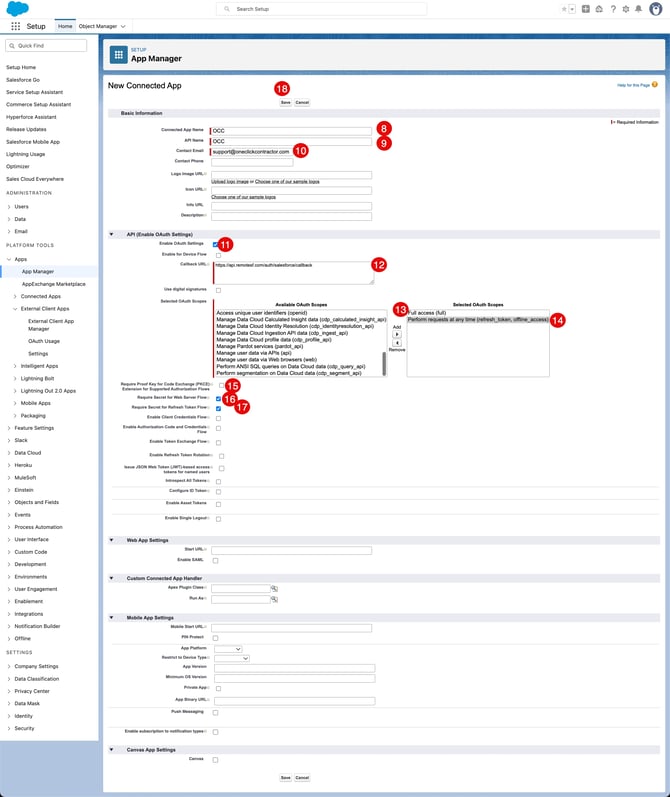
Configure the OCC Connected App and OAuth settings in Salesforce.
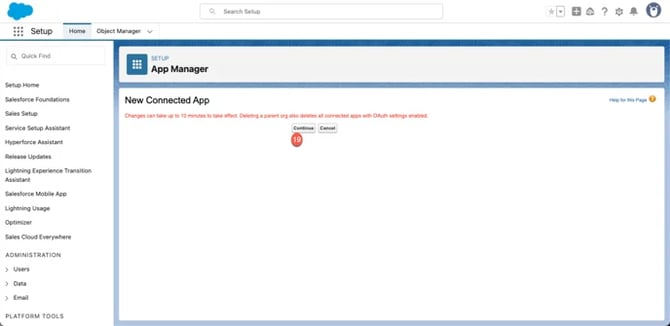
Continue after the Connected App is created.
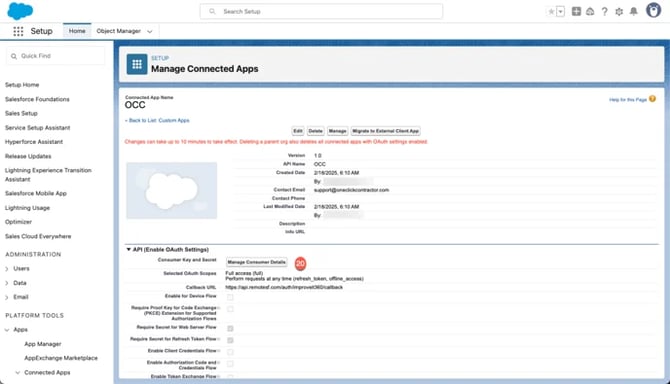
Open Manage Consumer Details on the saved Connected App.
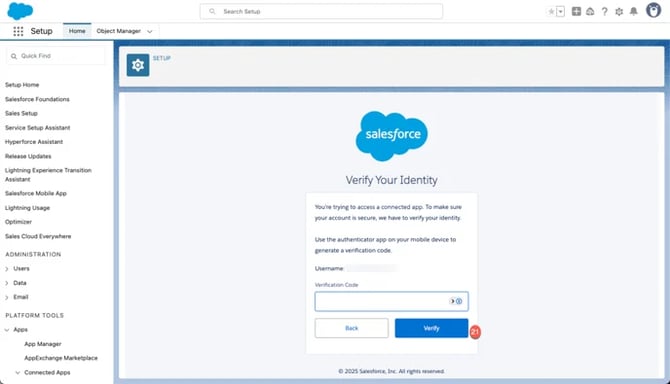
Complete Salesforce identity verification if required.
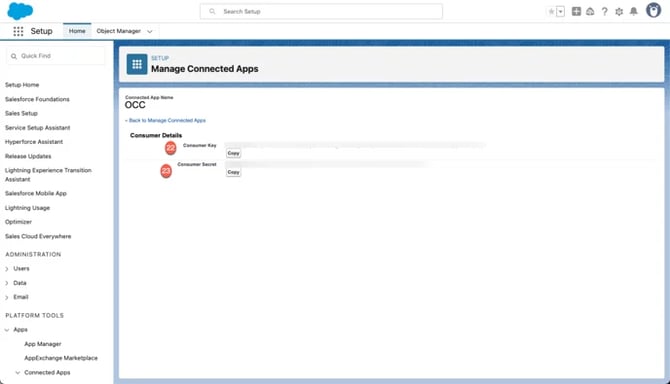
Copy Consumer Key and Consumer Secret securely.
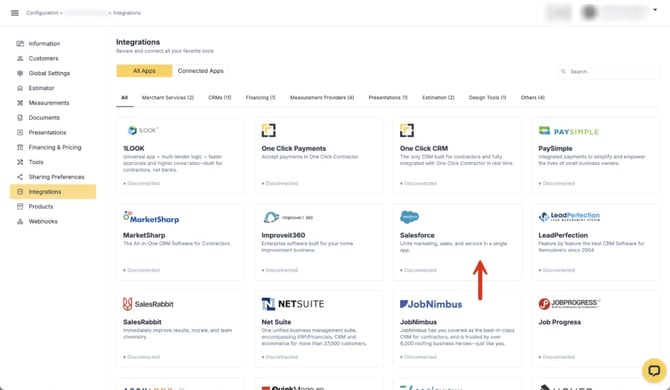
Locate Salesforce in OCC Integrations.
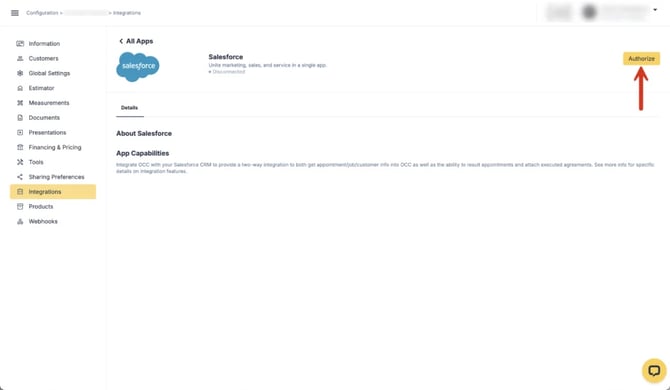
Open Salesforce and select Authorize.
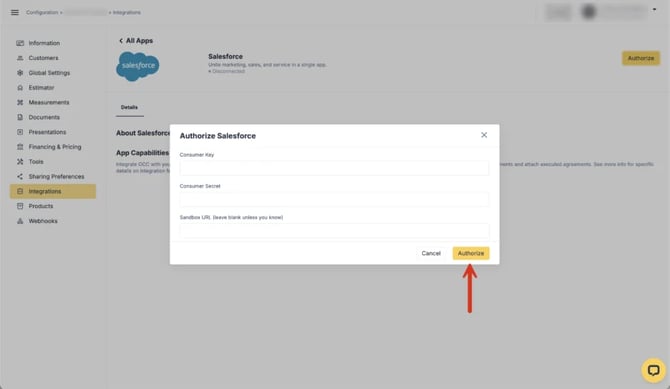
Enter Consumer Key and Consumer Secret in OCC.
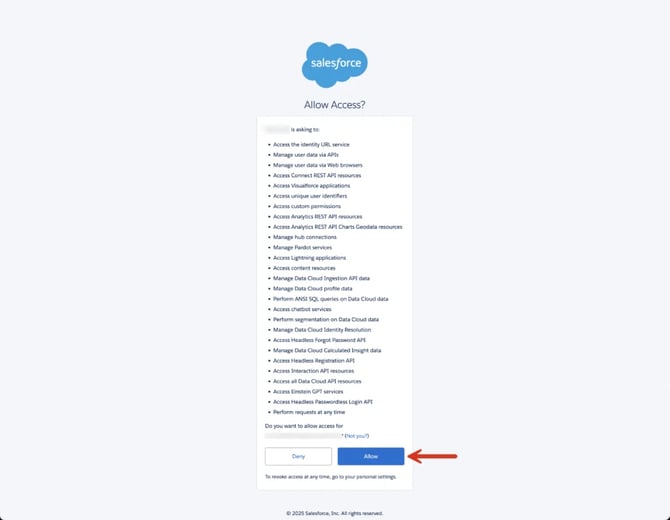
Approve OCC access in Salesforce.
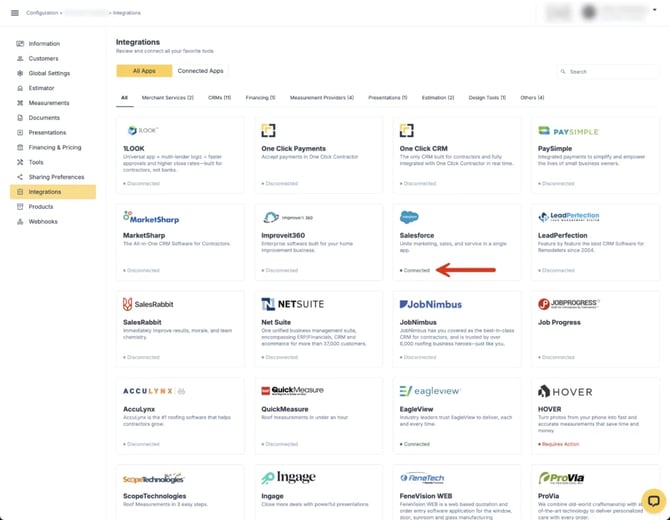
Verify Salesforce shows Connected in OCC.
Job Object and Lead settings
-
Job Object selects whether a Lead or Opportunity is the standard Salesforce source for an OCC job.
-
When Lead is selected, Enable Lead Create can create a Salesforce Lead from a new OCC job; Enable Lead Update can update a Salesforce Lead that has a valid Salesforce ID; Enable Lead Assignment Update can update Salesforce Lead assignment after OCC reassignment; Enable Lead Status Update can update Salesforce Lead status when the job status changes. Status alignment requires Support or developer configuration.
-
Filter Create Update to Salesforce by Valid Types limits which types can be sent to Salesforce.
Assignment user filters and reassignment
-
OCC normally reads Salesforce User.Id and User.Email and matches a Salesforce user to an OCC user by email. Salesforce users refresh daily at 02:00 UTC.
-
A mapped user must be active before the user's assigned Lead or Opportunity can import. Use Salesforce > Users Connected and the edit control to manually associate a mismatched Salesforce user with an OCC user.
-
The usual association key is OwnerId. Enable Reassignment allows Salesforce-side ownership changes to update an OCC job after creation. When disabled, OCC assigns the job only during the initial Salesforce-to-OCC creation.
-
Enable Custom User Object supports assignment through another Salesforce model. Define Model, ID, Email, Name, and Association Key before enabling it.
Filters synchronization and initial sync
-
Enable Filters restricts imported Lead or Opportunity records by a Salesforce column and allowed values. Example: LeadSource values Web or Phone allow only matching records to create OCC jobs.
-
Job updates run at minutes 10, 25, 40, and 55 of each hour. The Sync action starts the initial/manual synchronization instead of waiting for the scheduled run.
-
Initial sync refreshes Salesforce result/stage values, mapped users, and the selected job object. Legacy implementation notes describe selected Lead and Opportunity pulls over a roughly 29-day modified-record window and a maximum-size guard for an Opportunity update scan; validate these implementation limits before relying on them operationally.
Documents notes and outbound configuration
-
Document Attachment Preferences controls when OCC documents are attached to the Salesforce job object. Opportunity documents appear in the Opportunity attachment-related area; Lead documents appear in the Lead Files area.
-
Configured notes synchronization exchanges Salesforce Order Notes stored in ContentNote through Orders linked to Opportunities. Notes retain an author-name prefix. Enablement and linked Order requirements apply.
-
Appointment result actions can update Opportunity.StageName and Salesforce Event notes. A manual OCC job-status change is not automatically equivalent to an appointment result update.