![Icon for Courses-1.png]](https://help.oneclickcontractor.com/hs-fs/hubfs/Icon%20for%20Courses-1.png?width=36&height=36&name=Icon%20for%20Courses-1.png)
Scan an ID
Step 1: Scan the applicant ID. After entering the basic information for a new application, upload or take a clear photo of a driver’s license, government ID card, or passport.
👉 Supported ID files are PDF, JPG, HEIC, and PNG. The information is securely used only to prefill the application. Verify that the scanned address is current before submitting.
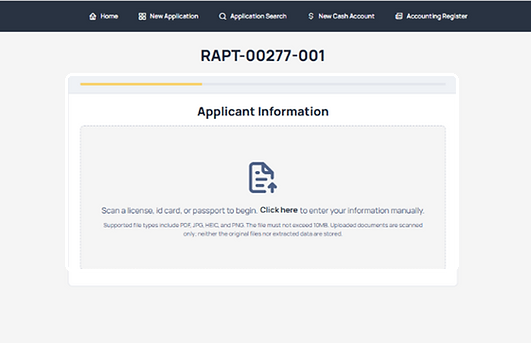
Image description: Applicant Information offers an ID scan option that prefills the application details from a supported document.
Scan an ACH Check
Step 2: Select ACH/Electronic Check while recording a payment. The check-scanning option then appears.
👉 Never scan cashier’s checks or traveler’s checks.
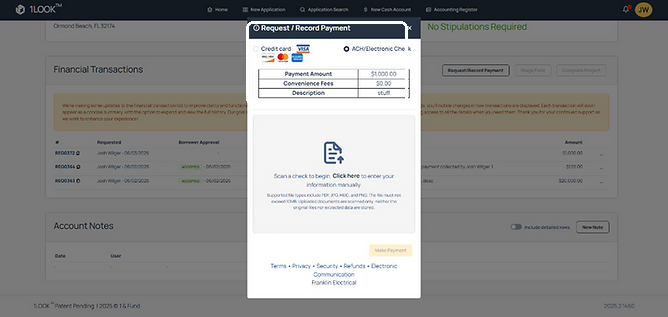
Image description: The Request/Record Payment window shows ACH/Electronic Check as the payment method used before check scanning.
Remember
What you see can differ depending on your organization's settings and your permission level. Tab names, headers, and available options are configurable. If you cannot see or do something described here, ask your manager first. They can contact support.