![Icon for Courses-1.png]](https://help.oneclickcontractor.com/hs-fs/hubfs/Icon%20for%20Courses-1.png?width=36&height=36&name=Icon%20for%20Courses-1.png)
An estimate must already be saved on the job before you can create an agreement from it.
Step 1: Open the Agreement tab
- Open the Agreement tab.
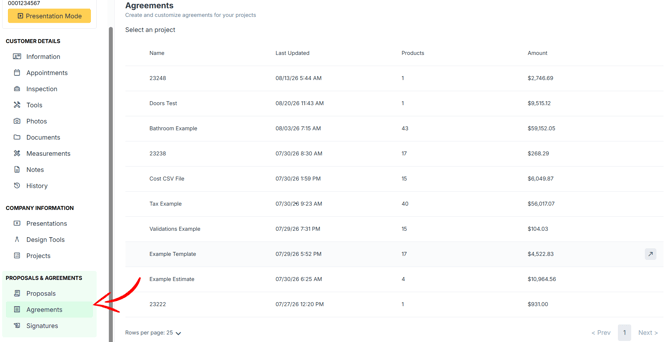
Step 2: Select the estimate
- Select the estimate you want to use. Agreement names match the estimates saved on the job, so make sure you pick the right one.
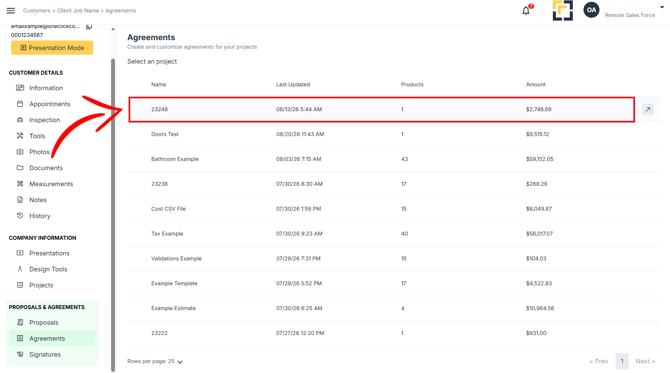
Step 3: Review the agreement
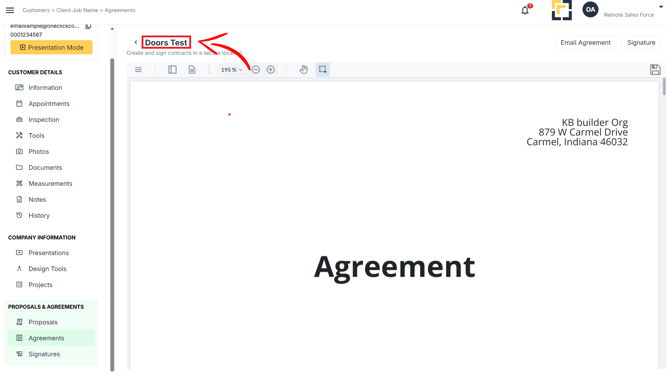
- Review the agreement preview.
- Complete any required or editable fields. You can't continue until required fields are filled in.
Step 4: Choose how it gets signed
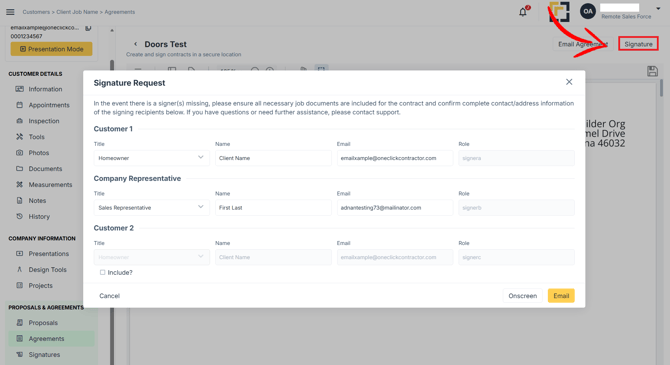
- Click Signature.
- Review the signer and agreement information and the listed email addresses. Click one email address to send to one specific person.
- Choose On Screen if the customer is signing on your device, or Send Email to send it to the selected recipient.