![Icon for Courses-1.png]](https://help.oneclickcontractor.com/hs-fs/hubfs/Icon%20for%20Courses-1.png?height=40&name=Icon%20for%20Courses-1.png)
Article Introduction
One Click Contractor allows you to request payments directly from the Agreement/Contract tab. Payment requests can be completed onsite or sent to the customer via email or text.
How to Send a Payment Request
-
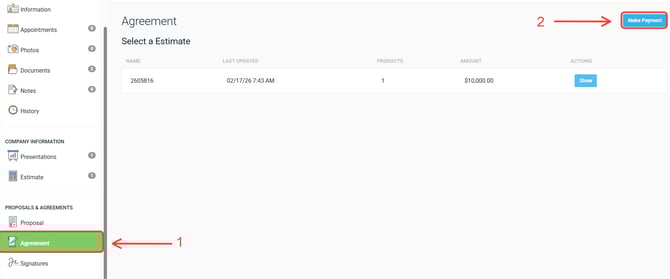
Open the Agreement/Contract tab within the job.
-
In the upper right-hand corner of the screen, click the blue Make Payment button.
After clicking Make Payment, a window will open prompting you to choose one of the following
options:
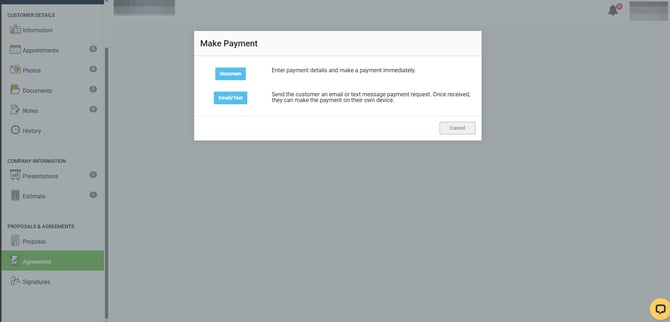
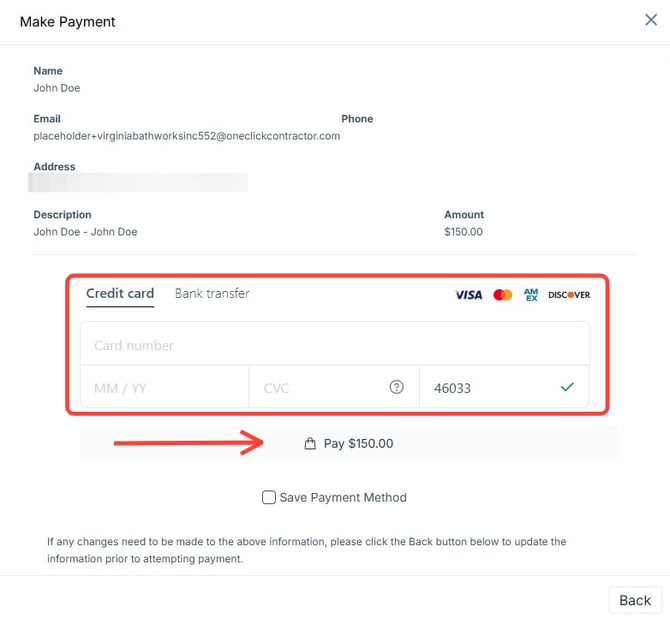
Option 1: Onscreen Payment
Select Onscreen if the customer is present.
Fill the form with the relevant data. and click next. 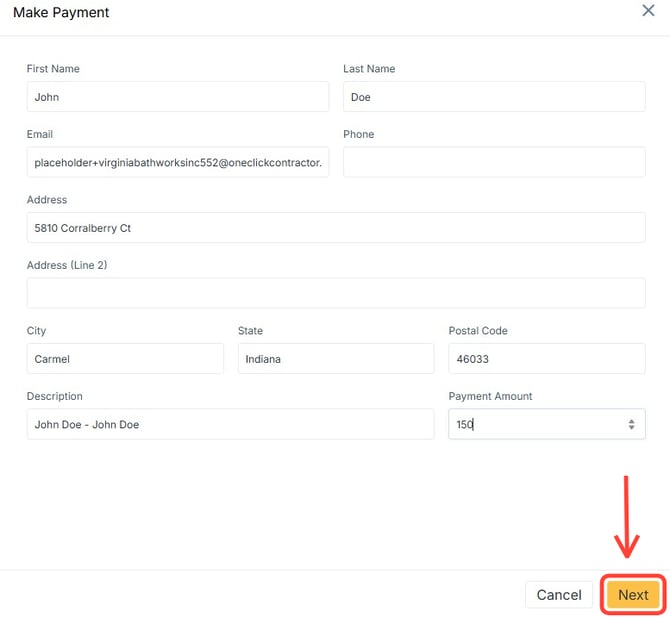
Fill the card information and click pay.
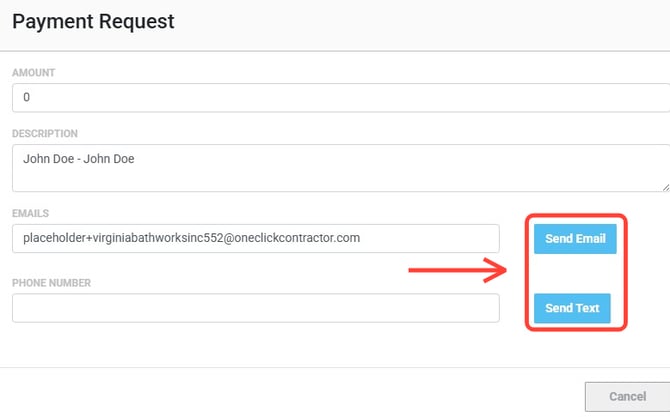
Option 2: Email or Text Payment Request
Select Email/Text if the customer prefers to complete the payment remotely.
You will be prompted to enter:
-
Payment Amount
-
Brief Description
-
Customer’s Email Address or Mobile Number
Click Send Email or Send Text to deliver the payment request.
Viewing Previous Payment Requests
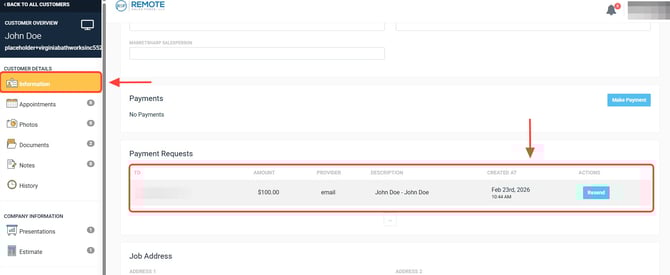
Previously sent payment requests can be located within the Information tab of the job.