![Icon for Courses-1.png]](https://help.oneclickcontractor.com/hs-fs/hubfs/Icon%20for%20Courses-1.png?width=36&height=36&name=Icon%20for%20Courses-1.png)
Requirements
Accurate customer information. The customer's name, email, address, and project type must be correct before you continue.
Exact loan amounts. Confirm the project amount, financed amount, and any down payment to the penny.
Select a Service Finance offer
Step 1: Review the offers with the customer.
👉 Each tile shows the term, APR, payment, and credit limit.
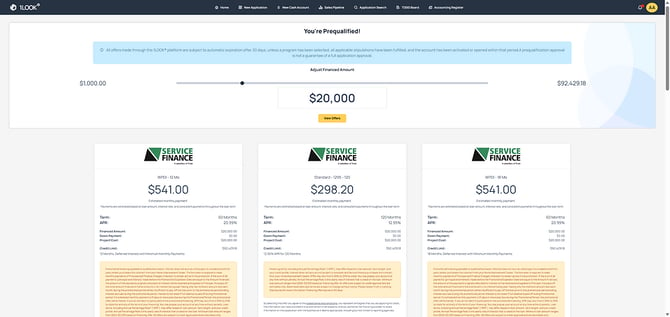
Image description: Service Finance offer tiles display the available financing terms.
Step 2: Adjust the financed amount when needed.
👉 Enter a revised amount or use the slider. A shaded area indicates when a down payment is required. Select Select Offer to continue.
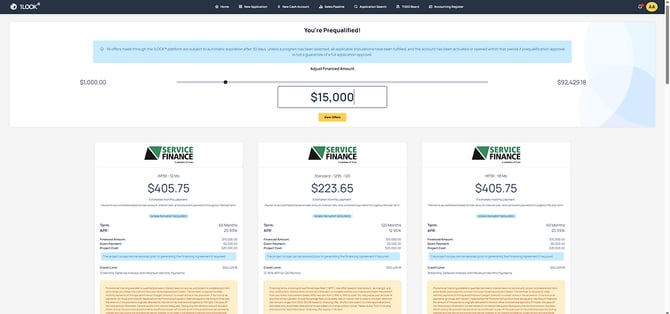
Image description: The offer screen shows the financed-amount controls and down-payment indicator.
Step 3: Review the promotional plan details.
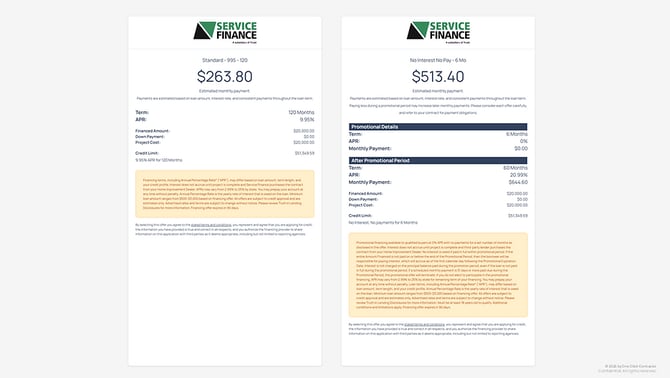
Image description: A promotional offer tile displays its additional plan details.
Step 4: Confirm the required down payment.
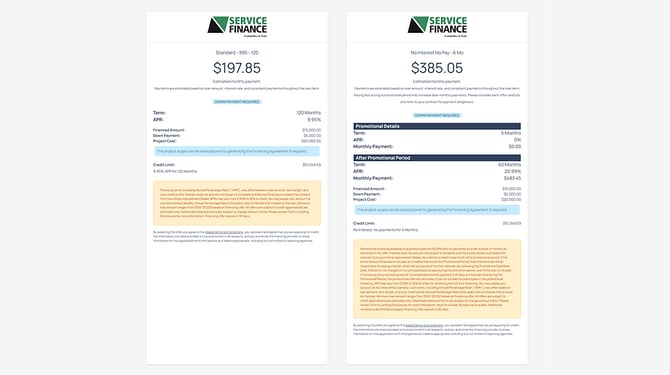
Image description: The selected offer identifies the required down payment.
Send the financing agreement
Step 5: Review the non-promotional financing agreement.
👉 Adjust the Total Project Cost here, or contact Support for other changes, before sending the agreement.
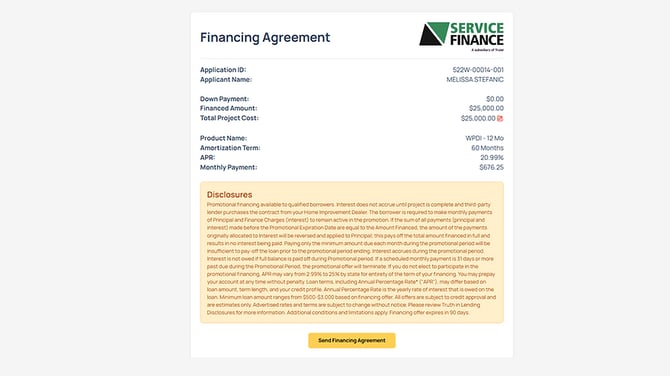
Image description: The non-promotional financing agreement includes the project total and loan information.
Step 6: Verify the promotional terms before sending documents.
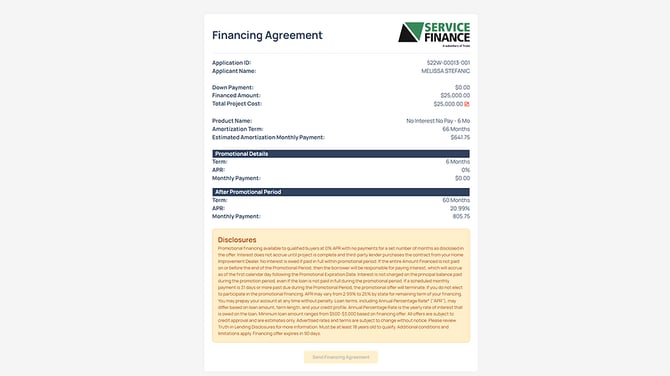
Image description: The promotional financing agreement displays the selected promotional plan.
Step 7: Confirm the borrower email was sent.
👉 1LOOK automatically emails the borrower after a Service Finance plan is selected. Use Account Details to confirm delivery.
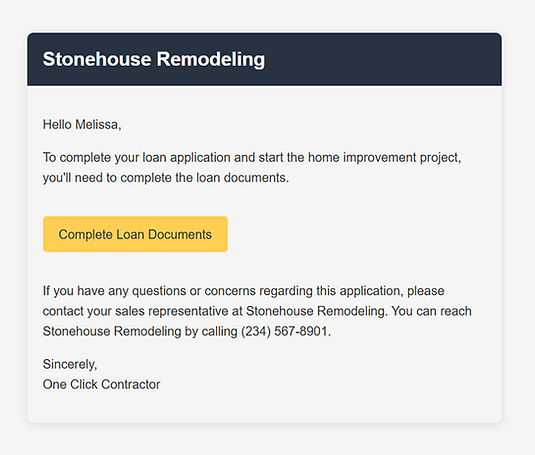
Image description: Account Details shows the automatic borrower-email delivery record.
Handle a counter offer
Step 8: Review the counter offer with the customer.
👉 A counter offer can change the loan program, the approved amount, or both. If needed, collect a down payment, reduce the project amount, or contact Support.
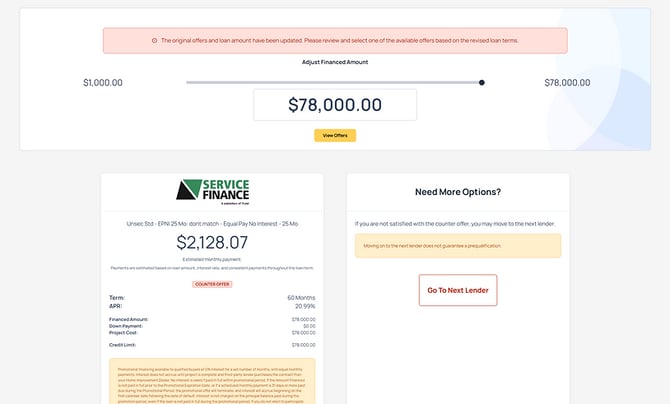
Image description: The counter-offer tile shows the revised approval available from Service Finance.
Complete the project and funding requirements
Step 9: Open Financial Transactions.
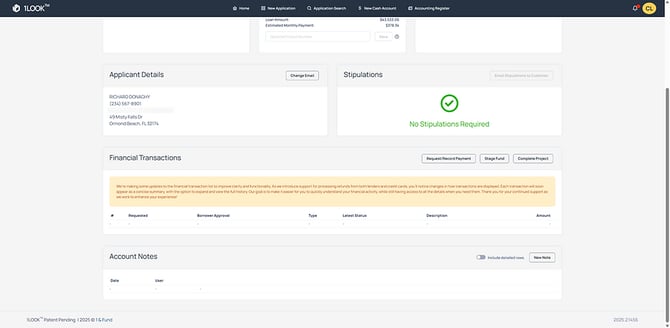
Image description: Financial Transactions includes the Complete Project action.
Step 10: Complete the project.
👉 1LOOK emails the configured Service Finance funding contact. That contact must sign electronically before funding can continue.
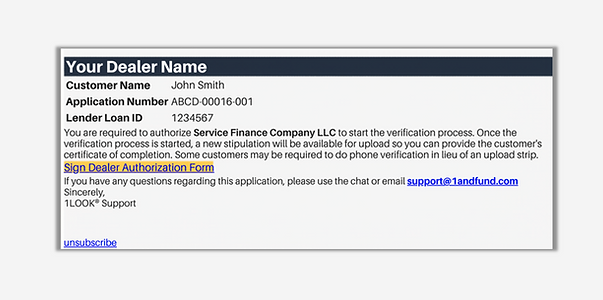
Image description: The dealer verification email starts the Service Finance funding review.
Step 11: Open the Verification Stipulation.
👉 Select the stipulation to upload the customer Certificate of Completion. Document photos must show all four corners and cannot contain crossed-out information.
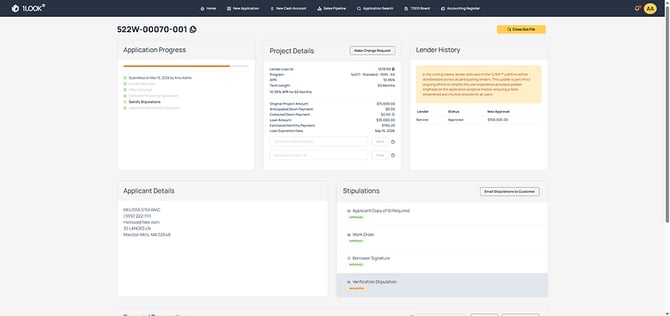
Image description: The stipulations area shows the Verification Stipulation requirement.
Step 12: Verify the Certificate of Completion process.
👉 If a certificate is not uploaded, Service Finance may contact the customer. If contact is unsuccessful, Service Finance funds the request after seven days.
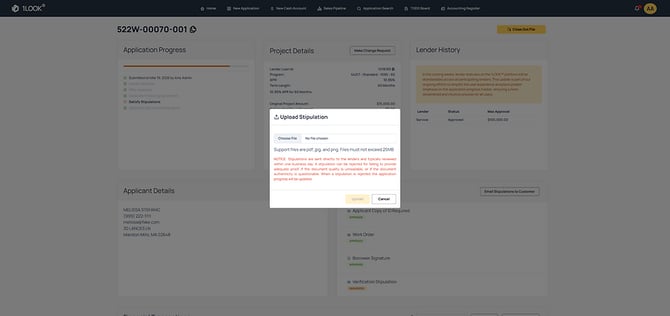
Image description: The upload screen accepts the Certificate of Completion document.
Remember
What you see can differ depending on your organization's settings and your permission level. If you cannot see or do something described here, ask your manager first. They can contact support.