![Icon for Courses-1.png]](https://help.oneclickcontractor.com/hs-fs/hubfs/Icon%20for%20Courses-1.png?width=36&height=36&name=Icon%20for%20Courses-1.png)
Overview
ServiceMinder does not send every appointment to OCC. A qualifying appointment must fall within the applicable sync window, use a Service Type enabled on the OCC integration card, and be assigned to a Service Agent with an active OCC user mapping. The most recent qualifying appointment determines the OCC job's assigned user. The integration pulls data from ServiceMinder; the supplied FAQ says OCC updates, including job status changes, are not sent back to ServiceMinder.
Before you troubleshoot a missing or incorrect job
-
Verify the ServiceMinder appointment is assigned to a Service Agent with an active mapping to the correct OCC user.
-
Confirm its Service Type is enabled under Settings > Enable Services on the ServiceMinder integration card.
-
Check the scheduled appointment date against the automatic or manually triggered sync window.
-
Allow for the 15-minute job. Automatic jobs run at :03, :18, :33, and :48 after the hour.
Step by step
Step 1: Check the scheduled appointment date
For automatic synchronization, the FAQ and Jobs article say OCC looks for appointments scheduled from one day ago through the current date. The setup guide says a manually triggered Sync looks back seven days through the current date. Appointments outside the applicable window are not included by that run.
Step 2: Check the appointment Service Type
Open the ServiceMinder integration card in OCC and select Settings. Confirm the appointment's Service Type is included under Enable Services. OCC only uses enabled services to create or update jobs.
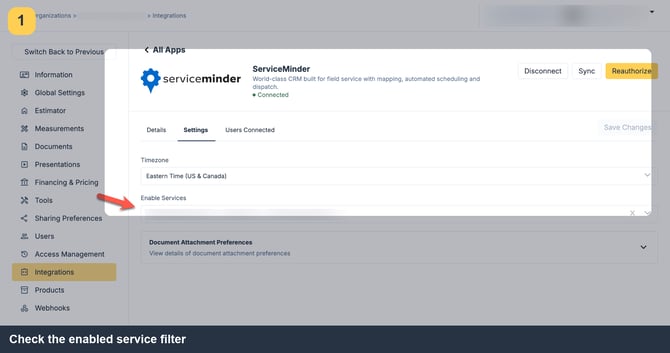
Image description: ServiceMinder integration settings with the Enable Services filter.
Step 3: Check the assigned Service Agent mapping
On the integration card, open Users Connected and confirm the appointment's Service Agent is linked to the intended OCC user and the mapping is Active. User email addresses link automatically only when they match exactly; users can be manually mapped.
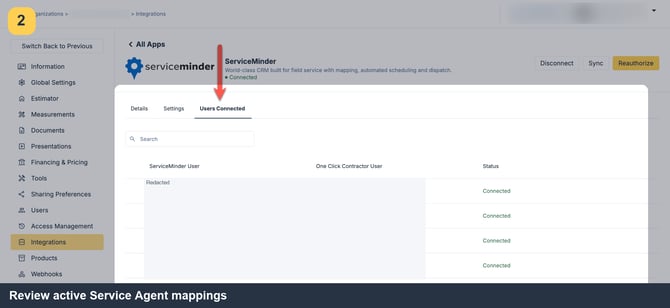
Image description: ServiceMinder Users Connected list.
Step 4: Allow for the scheduled pull or run Sync
Automatic job updates run every 15 minutes at :03, :18, :33, and :48. To force a synchronization, select Sync on the ServiceMinder card. The initial sync pulls Service Agents, available Services, and appointments for actively mapped users.
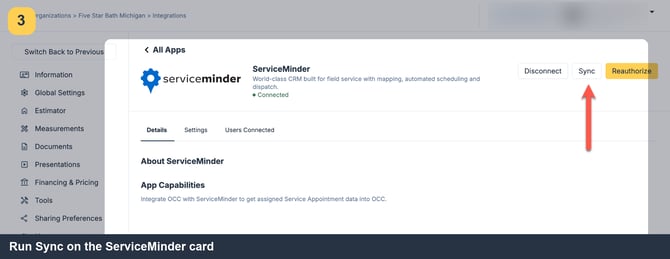
Image description: Sync control on the ServiceMinder integration card.
Step 5: Review the customer and job field mapping
The supplied Jobs article documents these values:
-
Customer name: {contact.Name}
-
Job name: {contact.Name}
-
Email: {contact.Email}
-
Lead source: {contact.LeadSource}
-
Address: line 1 {contact.Address1}; line 2 {contact.Address2}; city {contact.City}; state {contact.State}; postal code {contact.Zip}
-
Primary phone: label {contact.PhoneLabel}; number {contact.Phone}
-
Alternate phone: label {contact.AltPhoneLabel}; number {contact.AltPhone}
-
Metadata: ServiceMinder_contact_id = {contact.Id}
Step 6: Review appointment assignment and timing
OCC assigns the job to appointment.ServiceAgentId, provided the Service Agent has an active mapping. Appointment start time is {appointment.DateTime} interpreted using the company time zone configured on the integration settings. Appointment end time is {appointment.DateTime} plus {appointment.Duration}; when Duration is empty, the documented default is 60 minutes.
Step 7: Understand which appointment controls the OCC job assignment
OCC uses the assigned user from the most recent appointment whose Service Type is enabled. For example, if a later qualifying appointment is assigned to a different mapped Service Agent, the OCC job can be reassigned to that person. The setup source recommends enabling only sales appointment services to avoid undesired reassignment from unrelated service appointments.
Step 8: Choose when OCC uploads documents to ServiceMinder
On the ServiceMinder integration card, open Settings > Document Attachment Preferences. Select the applicable document events and save the settings. The FAQ states that OCC can push documents to ServiceMinder. The available options shown in the FAQ are:
Proposal: Button, Email
Agreement: Button, Email, Sent, Signed, Result Signed
Signable Documents: Sent, Signed
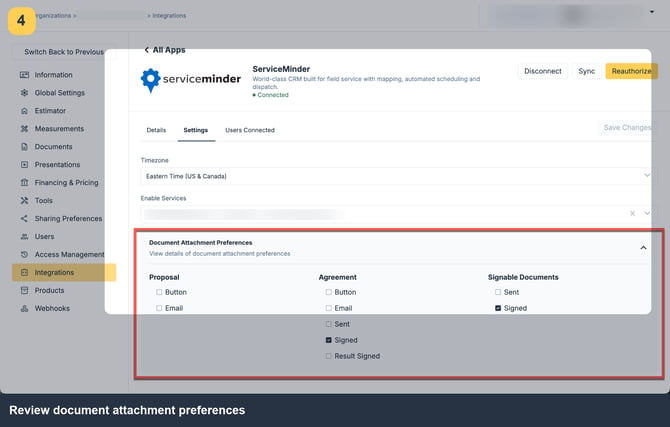
Image description: ServiceMinder Settings showing Document Attachment Preferences.
Step 9: Find uploaded documents in ServiceMinder
OCC attaches documents to the Contact associated with the appointment. Open that contact and inspect its documents or attachments area.
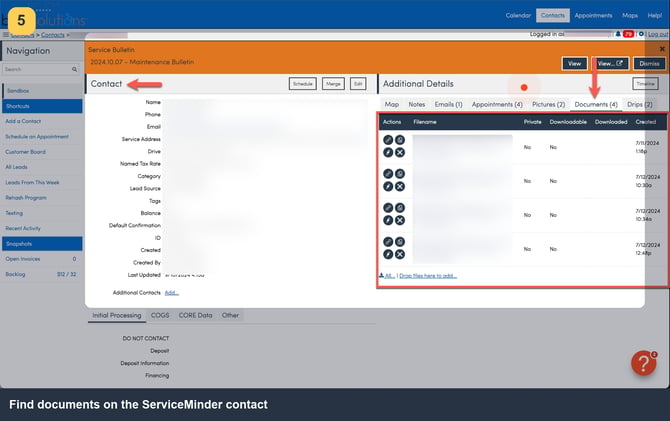
Image description: Contact in ServiceMinder with the document area visible.
Updates, deletion, and troubleshooting
-
No custom field mapping: the Jobs article says there are no alternate data mappings or job-creation mappings available.
-
Duplicate jobs: customers can create jobs manually in OCC while the integration also creates a job for the qualifying ServiceMinder appointment. Duplicate jobs can therefore occur, especially during the first day of integration use. A manually created OCC job cannot be linked afterward to an existing ServiceMinder contact. Completed agreements are uploaded to ServiceMinder by default for integration-created jobs, but that automatic behavior does not apply to manually created jobs.
-
No writeback: the FAQ states that OCC updates are not pushed to ServiceMinder, including OCC job status changes. Treat document attachment preferences as the separate outbound document behavior described above.
-
Contact or inquiry deleted in ServiceMinder: the OCC information becomes orphaned/unlinked. OCC does not receive a deletion update, and subsequent updates for those jobs are not pulled.
-
Appointment deleted in ServiceMinder: the deletion is not pulled into OCC; the existing OCC appointment/job is not updated by that deletion.
-
Job not created: check the appointment date window, enabled Service Type, active Service Agent mapping, and 15-minute schedule. Run Sync to force a pull when appropriate.
-
Job assigned to an unexpected user: review the enabled services and the most recent appointment among those services. Its assigned Service Agent controls the OCC job assignment.
-
Appointment time is incorrect: check the ServiceMinder integration Timezone. The setup guide explains that the API appointment timestamp needs the organization's time zone to display at the correct local time. The default is Eastern Time (US & Canada) unless changed.
-
New Service Agent is not available: Service Agents sync weekly at 3:30 AM UTC Sunday. Use Sync to refresh users, then check or manually correct the mapping.