![Icon for Courses-1.png]](https://help.oneclickcontractor.com/hs-fs/hubfs/Icon%20for%20Courses-1.png?height=40&name=Icon%20for%20Courses-1.png)
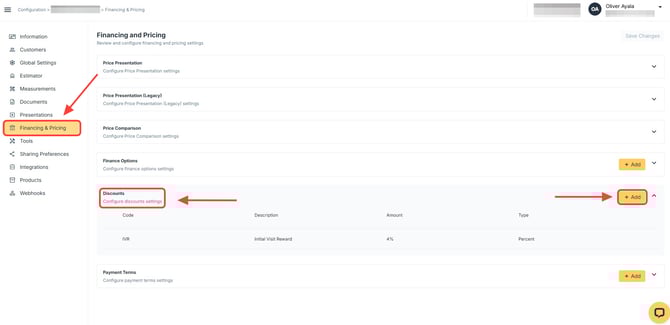
Discounts can be configured in the Financing & Pricing section of the Administration Dashboard. Once created, these discounts become available in the Estimator and can be applied to estimates during the estimate-building process.
Step 1: Create a Discount
- Select Discount.
-
Click Add.
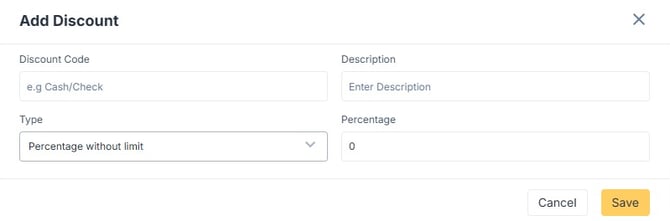
When creating a discount, you will be prompted to complete the following fields:
-
Code – Internal reference name for the discount.
-
Description – Explanation of the discount.
-
Type – How the discount will be calculated.
-
Percentage or Amount – Based on the selected type.
Complete each field based on how the discount should function.
Discount Types Explained
There are three available discount types:
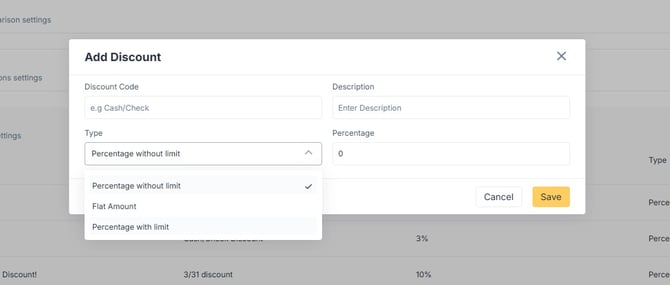
✳️Percentage Without Limit
This option applies a percentage to the total estimate amount without any cap.
Example:
If the estimate total is $20,000 and the discount is 10%, the discount applied will be $2,000.
There is no maximum limit on the discount amount.
✳️Percentage with Limit
This option applies a percentage to the total estimate amount but includes a maximum cap.
Example:
If the estimate total is $20,000 and the discount is 10%, the calculated discount would be $2,000.
If the limit is set to $1,000, the discount will cap at $1,000.
This ensures the discount does not exceed a specified maximum amount.
✳️Flat Amount
This option applies a fixed dollar amount to the estimate.
Example:
A $1,500 flat discount will deduct $1,500 regardless of the total estimate amount.
Applying Discounts in the Estimator
Once created, the discount will be available within the OCC Estimator.
The configured discount can be applied directly to the estimate cost during the estimate-building process.