![Icon for Courses-1.png]](https://help.oneclickcontractor.com/hs-fs/hubfs/Icon%20for%20Courses-1.png?height=40&name=Icon%20for%20Courses-1.png)
Article Introduction
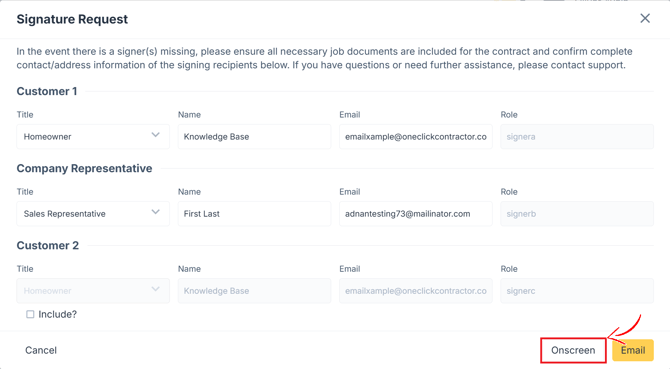
Onscreen signing is available after an agreement has been generated and its signing recipients have been reviewed.
Before starting this workflow, confirm that:
- The correct agreement has been generated from the estimate.
- All required Job Documents and Resources have been added.
- The customer and company representative information is correct.
- Customer 2 has been included when an additional customer must sign.
For help completing these steps, see:
- Preparing an Agreement for Signature in the Estimator
- Adding Job Documents and Resources to a Customer Agreement
Once the agreement is ready, open the Signatures tab from the Estimator’s left panel. Select the agreement that matches the applicable estimate, then open the signing options for the recipient who will sign using the current device.
Open the Signing Recipients Window
From the Signatures tab, select the agreement you want to complete.
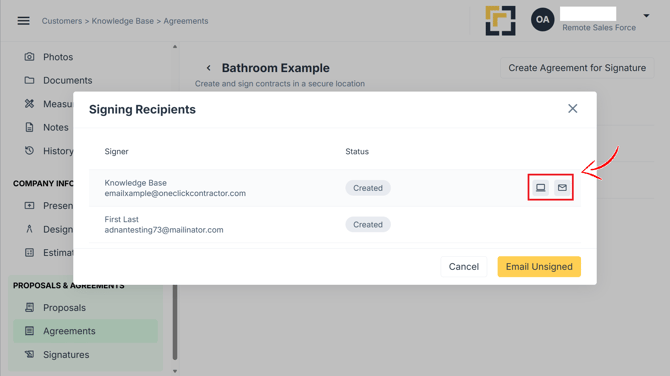
Select Signature to open the Signing Recipients window. This window displays each included signer, their email address, and their current signing status.
Select a Recipient for Onscreen Signing
Select the Onscreen action for that recipient. You will be redirected to the Scribble signing page.
-
On a computer, hover over the recipient’s row to display the available actions.
-
On an iPad, select the recipient’s row to display the available actions.
Begin the Signing Process
The Scribble welcome window displays information about the signing session, including:
- The signer’s name
- The person or organization requesting the signature
- The number of required fields
- The number of completed fields
- The date and time until which the document can be signed
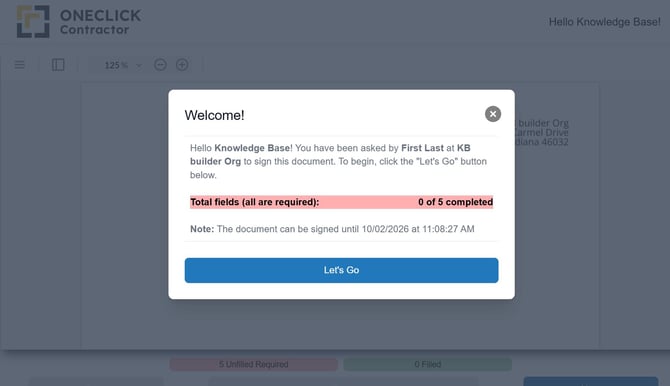
Select Let’s Go to begin signing.
Complete All Required Fields
The signing page shows how many required fields remain incomplete.
The signer must complete every required field assigned to them before the agreement can be finished. Required fields may include signatures, initials, or other information within the document.
Use Next to move through the required fields.
Before completing the signing session, confirm that:
- All required fields have been completed
- The information belongs to the correct signer
- No required signature or initial fields remain unfilled
After all required fields are complete, finish and save the agreement.
The Scribble exploration images and instructions are explained in a different article.