![Icon for Courses-1.png]](https://help.oneclickcontractor.com/hs-fs/hubfs/Icon%20for%20Courses-1.png?width=36&height=36&name=Icon%20for%20Courses-1.png)
Before you begin
-
One Click Payments is enabled for the organization.
-
You have access to the customer agreement and the payment option you need.
-
Confirm the amount and customer contact information before initiating a request.
Start a payment or request
Step 1: On the customer agreement tab, select Make Payment. Use an agreement that is ready to collect a payment.
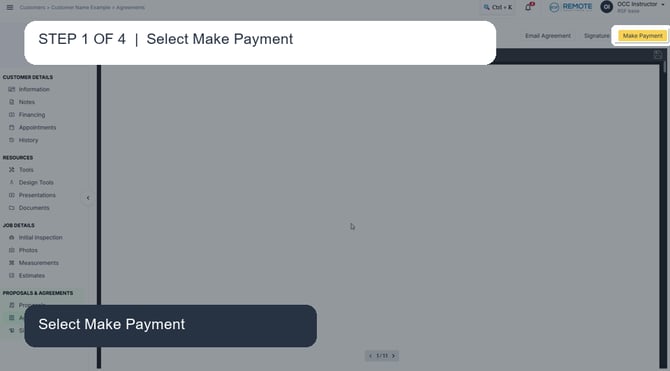
On the customer agreement, select Make Payment. Use an agreement that is ready to collect a payment.
Step 2: Choose On Screen, Email / Text, or Store Payment Method Only. Choose the option that matches how the customer will provide payment information.
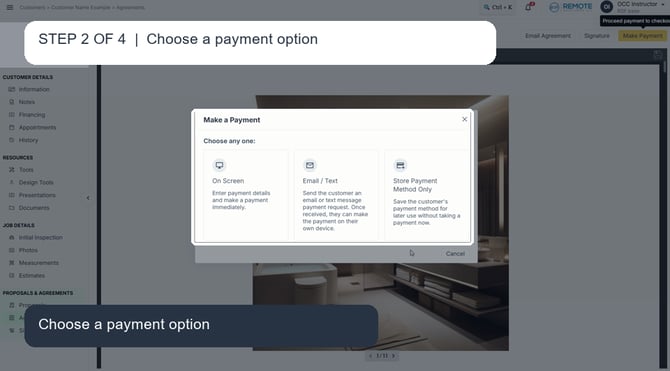
In Make a Payment, choose On Screen, Email / Text, or Store Payment Method Only. Choose the option that matches how the customer will provide payment information.
Step 3: For Email / Text, the amount of the estimate (+the surcharge, if configured) will pop up on screen. Confirm the contact information before sending the request.
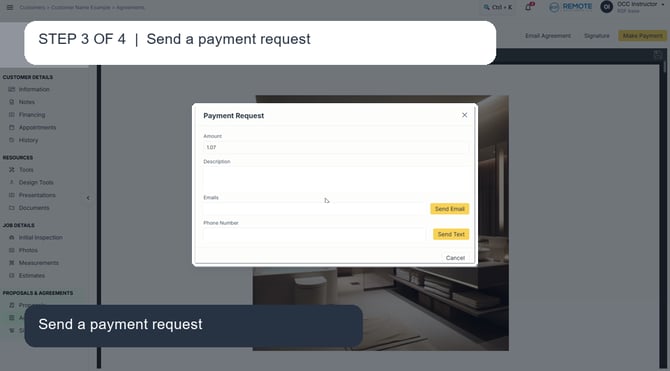
For Email / Text, enter the amount, description, and customer contact information, then select Send Email or Send Text. Confirm the contact information before sending the request.
Step 4: For Store Payment Method Only, select Credit card or Bank transfer, enter the information, and select Store Details. You can also save a payment method once it's been used on screen.
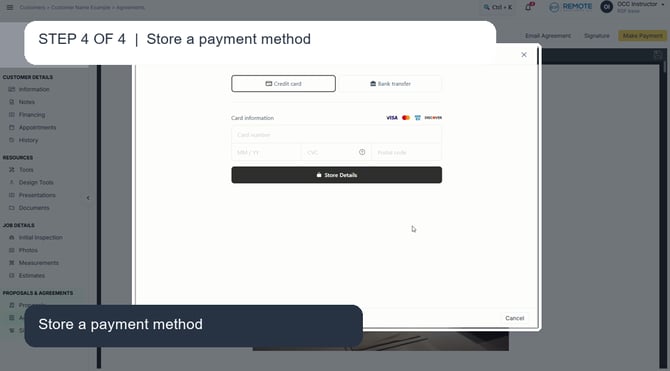
For Store Payment Method Only, select Credit card or Bank transfer, enter the information, and select Store Details. This saves the method without processing a payment.
Choose the right option
-
On Screen. Use this when the customer is present and payment details can be entered on the current device. Review the customer and amount, then follow the prompts to complete the payment.
-
Email / Text. Use this when the customer should complete payment from their own device. Enter the amount, a clear description, and the correct email address or phone number before sending.
-
Store Payment Method Only. Use this when the customer wants a card or bank transfer method saved for a later payment, without charging it now.
Remember
- Images and options may difer from your screen. If so, you may lack the right permissions. Reach out to your manager or support to activate and/or troubleshoot.