![Icon for Courses-1.png]](https://help.oneclickcontractor.com/hs-fs/hubfs/Icon%20for%20Courses-1.png?width=36&height=36&name=Icon%20for%20Courses-1.png)
Requirements
-
Permission to view or edit the applicable Product Price List.
Find the product level and pricing
Step 1: Start at Top Level. In Products > Price List Editor, use Top Level to see the first layer of categories and products in the selected price list. A dash in the Labor, Product, and Total columns indicates that the row contains items below it rather than a price at that level.
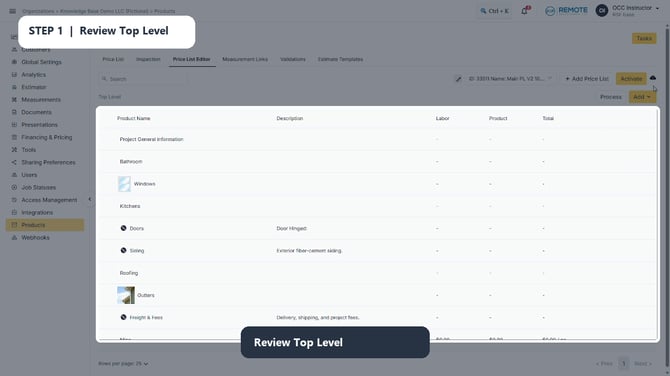
Image description: Top Level in the Price List Editor, showing multiple parent categories and products with no price at their current level.
Step 2: Open the parent and child levels. Select a category or product row to move deeper into the hierarchy. Use the breadcrumb path above the table to confirm the level you are viewing and to return to an earlier parent.
💡Note: an easy way to identify if a product is a parent: they will have a - in the labor/product columns.
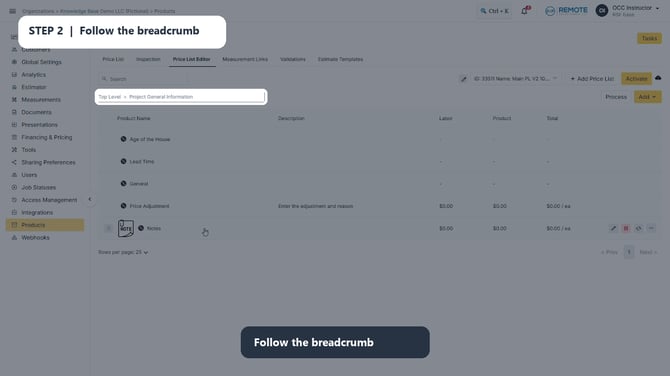
Image description: A product hierarchy opened below Top Level. The breadcrumb identifies the current parent path.
Step 3: Review the final product pricing. Continue opening the tree until the final product list shows values. Check the Labor, Product, and Total columns together; the visible Total reflects the values that apply to that product.
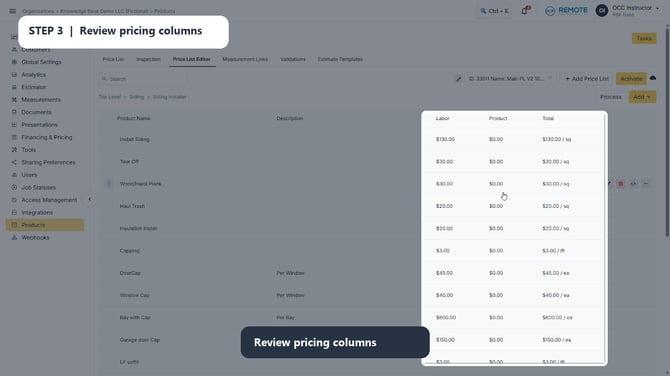
Image description: A final product level showing Labor, Product, and Total amounts for individual items.
Check Options when the final product still has no price. A product with $0.00 values may be intentionally unpriced, or its pricing may be configured in Options. Review the product and its available options before deciding that a price is missing.
💡Best practice
Start at Top Level and move through one level at a time. Before changing a price, confirm whether the amount belongs in Labor, Product, or Options. Do not treat a $0.00 product as an error until you have checked its options and intended setup.
⚠️Price changes applied to a parent will not impact the product's price.
Remember
What you see can differ depending on your organization's settings and your permission level. Tab names, headers, and available options are configurable. If you cannot see or do something described here, ask your manager first. They can contact support.