![Icon for Courses-1.png]](https://help.oneclickcontractor.com/hs-fs/hubfs/Icon%20for%20Courses-1.png?width=36&height=36&name=Icon%20for%20Courses-1.png)
Select an Upgrade offer
Step 1: Review the offers with the customer.
👉 Each tile shows the term, APR, payment, and credit limit. Auto-pay provides a small discount and requires borrower bank information.
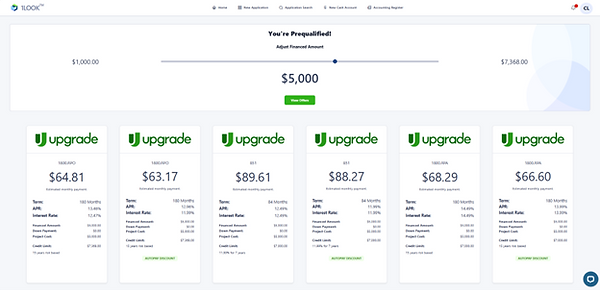
Image description: Upgrade application screen for this step.
Step 2: Adjust the financed amount when needed.
👉 Upgrade may approve more than the requested amount. Shaded boxes indicate when a down payment is required.
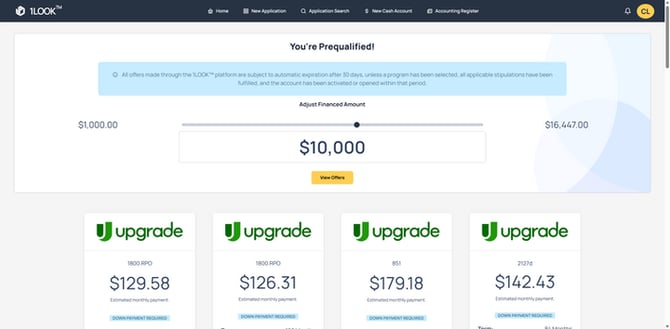
Image description: Upgrade application screen for this step.
Send the financing agreement
Step 3: Review the financing agreement.
👉 Confirm loan terms and project details. Use the red pencil to adjust Total Project Cost before sending.
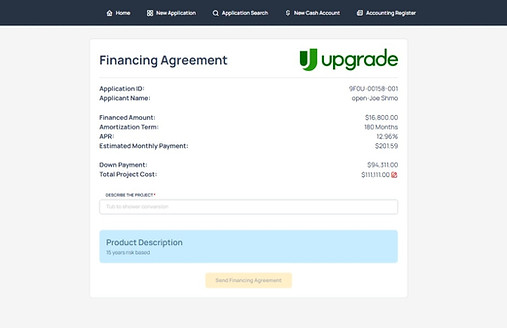
Image description: Upgrade application screen for this step.
Complete account activation
Step 4: Select Launch Lender Portal.
👉 Copy and email the URL if the sales rep is not with the customer.

Image description: Upgrade application screen for this step.
Step 5: Complete the customer account setup.
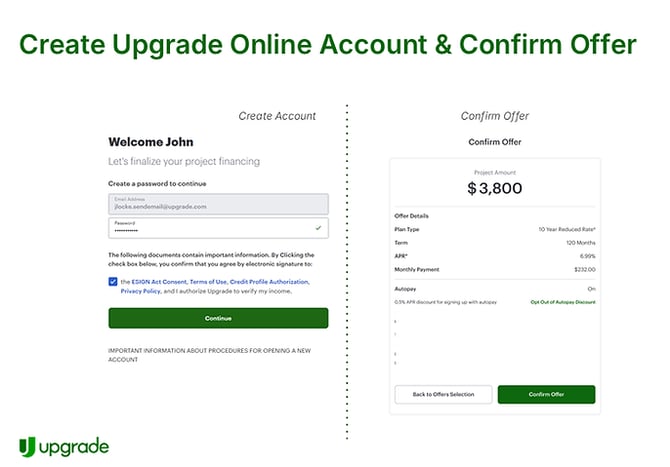
Image description: Upgrade application screen for this step.
Step 6: Select Confirm Offer.
👉 The customer should only select Confirm Offer.
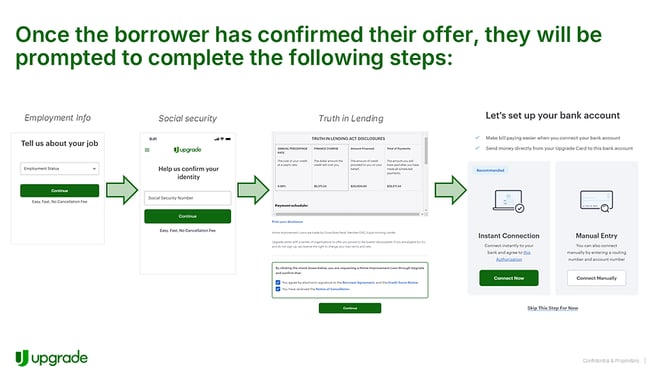
Image description: Upgrade application screen for this step.
Complete borrower requirements
Step 7: Review the credit union membership request.
👉 Membership is free and does not change loan terms.
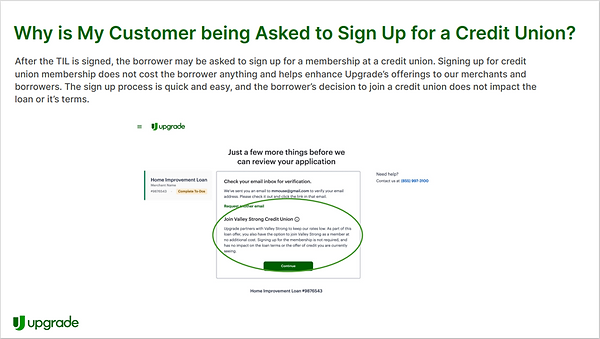
Image description: Upgrade application screen for this step.
Step 8: Review the borrower email verification.
👉 Upgrade sends a welcome email to the address entered in 1LOOK.
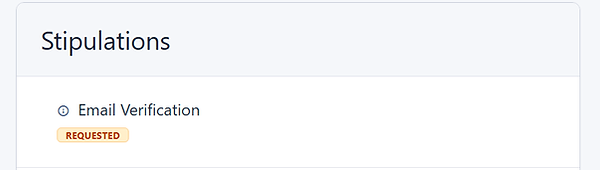
Image description: Upgrade application screen for this step.
Step 9: Open the email verification stipulation.
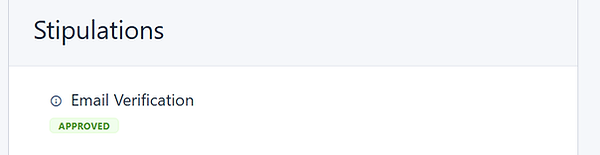
Image description: Upgrade application screen for this step.
Step 10: Complete the email verification.
👉 The customer must call Upgrade directly.
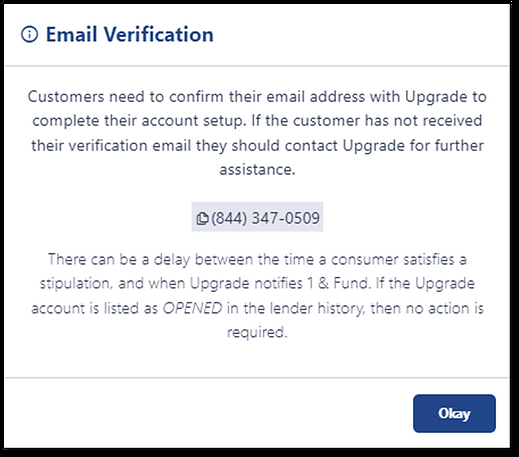
Image description: Upgrade application screen for this step.
Upgrade statuses
Declined: declined. New: TransUnion credit freeze. Offered: offer and setup remain. Signed/Submitted/Approved: banking information remains. Opened: ready for funding. Withdrawn/Expired/Closed: closed.
Remember
What you see can differ depending on your settings and permission level. Ask your manager if you cannot complete an action.