![Icon for Courses-1.png]](https://help.oneclickcontractor.com/hs-fs/hubfs/Icon%20for%20Courses-1.png?height=40&name=Icon%20for%20Courses-1.png)
Documents are uploaded from the Documents section in the Administration Dashboard under All Documents. This area serves as the central document library where files can be stored, organized, and configured for use across the platform.
Once uploaded, documents can be organized into folders, configured as Job Resources, or later added to Proposal, Agreement, or Inspection layouts.
Step 1: Upload a Document
-
Click Upload Document.
-
Select the File from your computer.
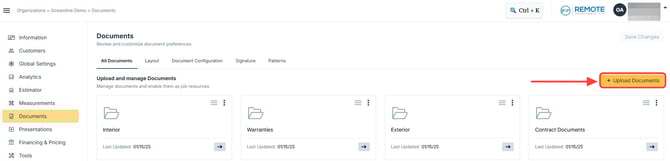
Uploaded documents save automatically and will appear in the document list.
Step 2: Organize Documents with Folders
You can organize documents into folders to keep the library easier to manage.
-
Click Create Folder.
-
Enter the Folder Name.
-
Upload documents directly into that folder if desired.
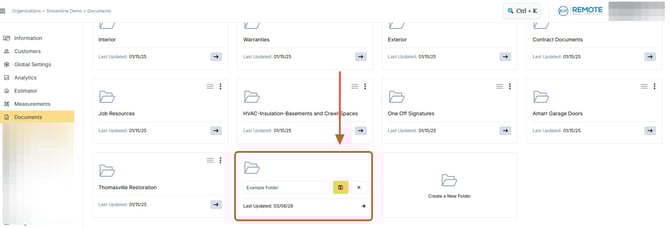
Folders can help separate documents by purpose, department, or document type.
Enable Job Resource (Optional)
After uploading a document, the system allows you to toggle the document as a Job Resource.
When enabled, the document will appear in the Estimator across the entire organization.
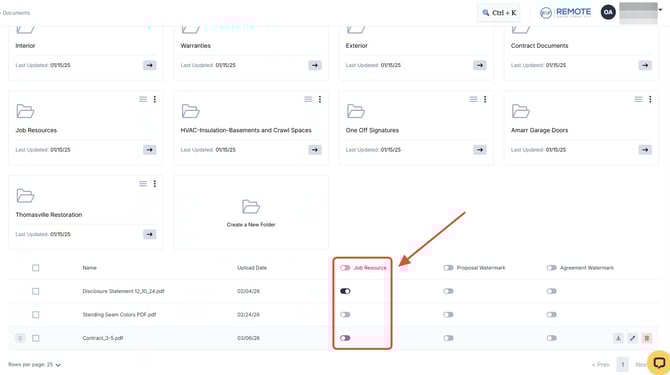
Job Resources are explained in more detail in a separate article.
Step 3: Manage Uploaded Documents
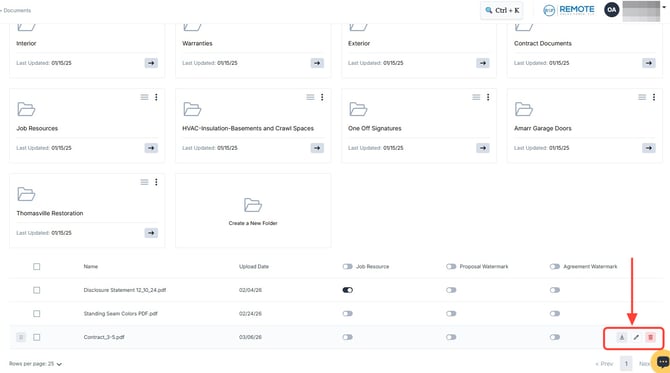
You can manage each document using the edit icon.
-
Click the Edit (Pen) Icon.
From this menu you can:
-
Download the document
-
Edit the document name
-
Delete the document
Step 4: Name Convention Best Practices
Using a clear naming structure helps keep the document library organized.
Recommended practices include:
-
Rename older versions using the format:
DocumentName_archivedDATE -
Use recognizable names for new documents by adding:
-
A date
-
A version number
-
A descriptive tag
-
Example:
Contract_2026 Contract_V2 DisclosureForm_Updated
This helps prevent confusion when multiple versions of a document exist.
💡 Notes:
-
Documents uploaded in the Administration Dashboard are available across the entire organization.
-
Job Resource documents will appear in the Estimator for all users.
-
If you cannot upload or manage documents, contact your administrator for assistance.