![Icon for Courses-1.png]](https://help.oneclickcontractor.com/hs-fs/hubfs/Icon%20for%20Courses-1.png?height=40&name=Icon%20for%20Courses-1.png)
Article Introduction
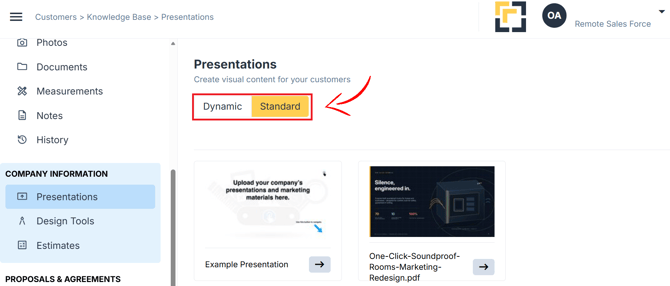
Open the Presentations tab within a job to view the presentation content available for that customer.
From this tab, you can use the presentation as either Standard or Dynamic. The option you choose determines whether the presentation follows its original order or can be adjusted for the current customer.
Choosing Between Standard and Dynamic
Use Standard when you want to present the content in its original uploaded order.
Use Dynamic when you want to:
- Rearrange presentation assets for the current customer
- Include relevant inspection items
- Adjust the presentation sequence without changing the original uploaded content
What to Expect
The Presentations tab displays the presentation content available for the job.
When using Standard, the assets remain in their original order. When using Dynamic, you can adjust the asset order and include available inspection items before presenting the content to the customer.
The presentation assets and inspection items available may vary depending on your organization’s configuration and the information associated with the job.
How It Looks in One Click Contractor
Important Notes
- Standard Presentations retain the original uploaded asset order.
- Dynamic Presentations allow assets to be reordered for a specific customer.
- Dynamic presentations can include inspection items associated with the job.
- Adjusting a Dynamic presentation does not change the original uploaded presentation.
- Available content depends on the presentations configured for your organization and the inspection information associated with the job.