![Icon for Courses-1.png]](https://help.oneclickcontractor.com/hs-fs/hubfs/Icon%20for%20Courses-1.png?height=40&name=Icon%20for%20Courses-1.png)
The Fencing Tool within the Measurements tab allows you to draw fence layouts directly on the property map, automatically calculate measurements, and export a clean version of the drawing for use in customer-facing documents.
This article explains how to access the tool, draw fence lines, save your work, and export the drawing to the Documents tab.
Step 1: Access the Fencing Tool
-
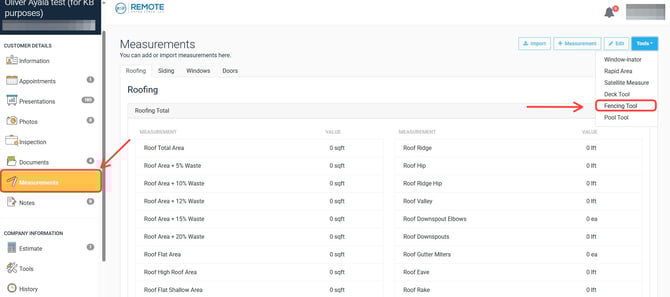
Open the job. Navigate to the Measurements tab.
-
Click Tools. Select Fencing Tool from the dropdown menu.
Step 2: Drawing the Fence Layout
Inside the Fencing Tool:
-
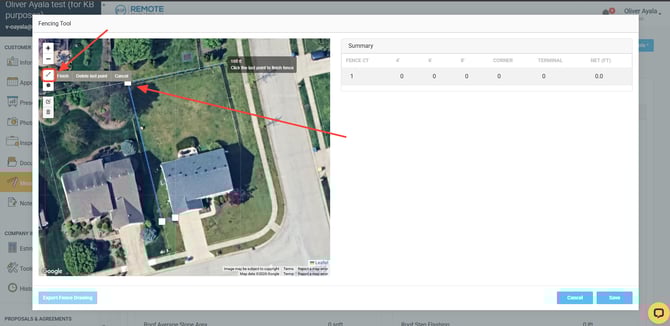
Select the Line icon on the left-hand side.
-
Click on the map to create fence points.
-
Continue clicking to draw the fence path around the property.
As you draw:
-
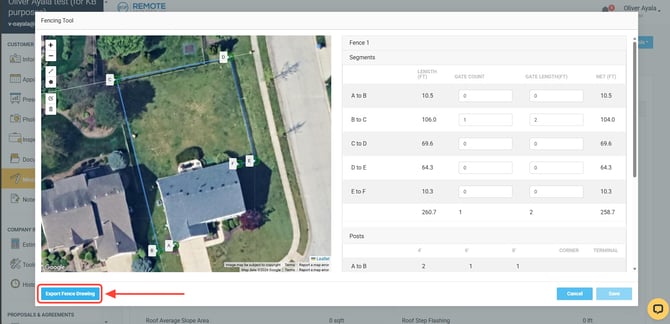
Measurements are automatically calculated.
-
Linear footage is populated in the summary panel.
-
Points are labeled within the tool.
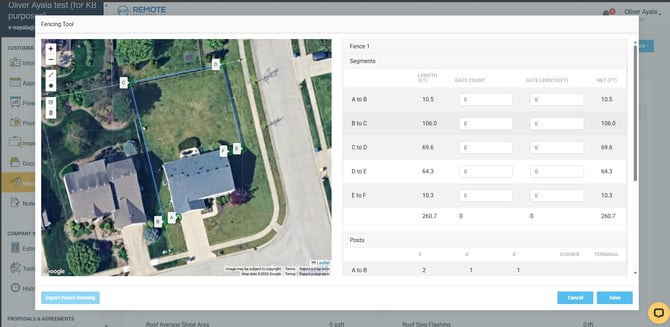
Click Save once your drawing is complete.
Exporting the Fence Drawing
After saving your layout, click the Export Fence Drawing button located in the bottom left corner of the screen.
Step 3: Where to View the Export
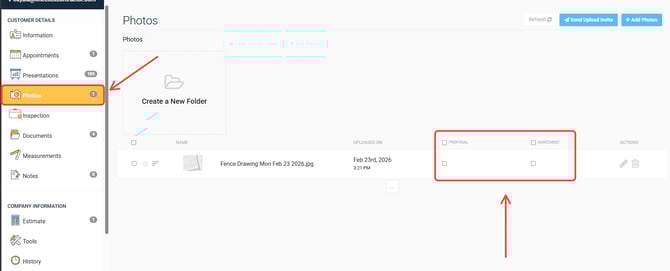
The exported fence drawing will now appear in the job’s Photos tab.
From there, you can:
-
Attach (annex) it to a Proposal
-
Attach it to an Agreement