![Icon for Courses-1.png]](https://help.oneclickcontractor.com/hs-fs/hubfs/Icon%20for%20Courses-1.png?width=36&height=36&name=Icon%20for%20Courses-1.png)
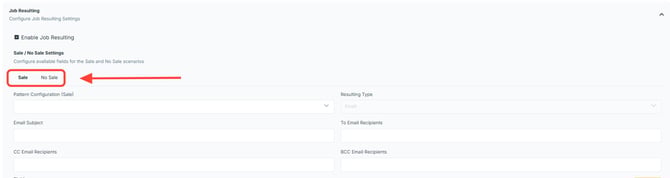
Job Resulting is configured from the Global Settings in One Click Contractor.
Step 1: Configure Sale and No Sale
Job Resulting must be configured separately for:
-
Sale
-
No Sale
Each option can have its own:
-
Fields
-
Email subject
-
Email recipients
Step 2: Set the Pattern
The pattern controls the document that is generated after a job is resulted.
-
Select Pattern
This determines what the downloaded result will look like.
.webp?width=670&height=340&name=user_cropped_screenshot%20(1).webp)
Step 3: Email Settings
You can control who receives the job result.
-
Enter Email Recipient(s)
-
Separate multiple emails with commas
-
Optional: add CC or BCC recipients
You can also define the subject line:
-
Enter Email Subject
Dynamic values may be used, such as:
.webp?width=670&height=172&name=user_cropped_screenshot%20(2).webp)
Step 4: Add Fields
Fields define what users must complete when resulting a job.
-
Click Add Field
For each field:
-
Enter Name (internal reference)
-
Enter Label (what users will see)
-
Select Type (text, dropdown, date, etc.)
-
Toggle Required On or Off
.webp?width=670&height=375&name=user_cropped_screenshot%20(3).webp)
Example Field Setup
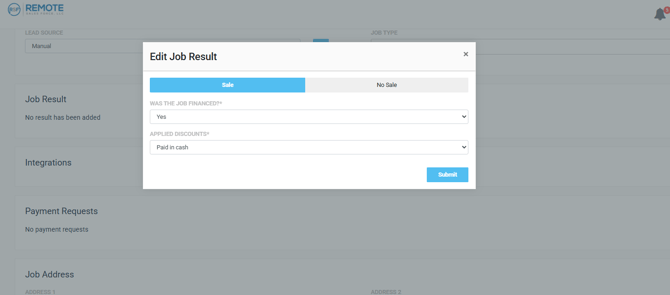
Step 5: Sale Example
-
Label: Was this job financed?
-
Type: Dropdown (Yes / No)
-
Required: On
.webp?width=670&height=341&name=user_cropped_screenshot%20(4).webp)
Step 6: No Sale Example
-
Label: Should we follow up?
-
Type: Dropdown (Yes / No)
-
Required: On
Step 7: Save Configuration
-
Click Save
Your Job Resulting setup will now apply to all users.
.webp?width=670&height=376&name=user_cropped_screenshot%20(5).webp)
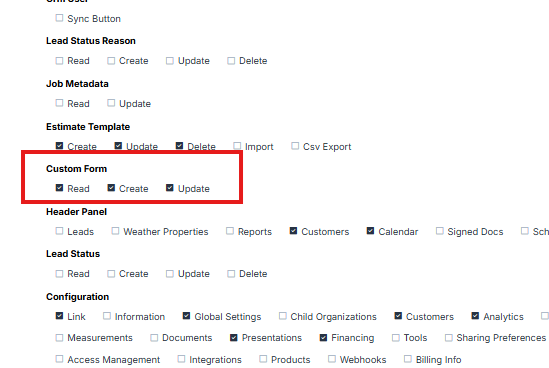
⚠️To ensure that Job Resulting is available for the estimator's users, make sure to enable the permissions.
Quick Peek on how the configuration shows in the estimator
For the full guide, see Job Resulting - Configuring Job Resulting.