![Icon for Courses-1.png]](https://help.oneclickcontractor.com/hs-fs/hubfs/Icon%20for%20Courses-1.png?width=36&height=36&name=Icon%20for%20Courses-1.png)
An estimate stays connected to the price list that was active when the estimate was created. Later price-list changes do not update its products, options, or prices. The warning beside Add Template tells you that a newer price list is now active for your organization.
Step 1: Read the warning
On the older estimate, hover over the warning icon beside Add Template. The tooltip says its price list is not the current one for your organization.
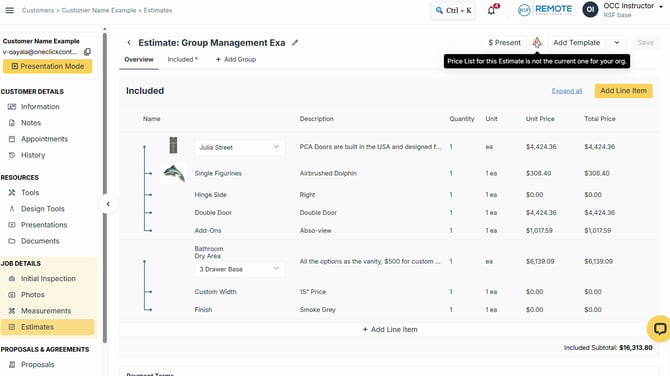
Image description: The price-list warning tooltip beside Add Template.
Step 2: Browse available products
Click Add Line Item. You can still add line items, but the product picker uses the price list attached to this estimate when it was created.
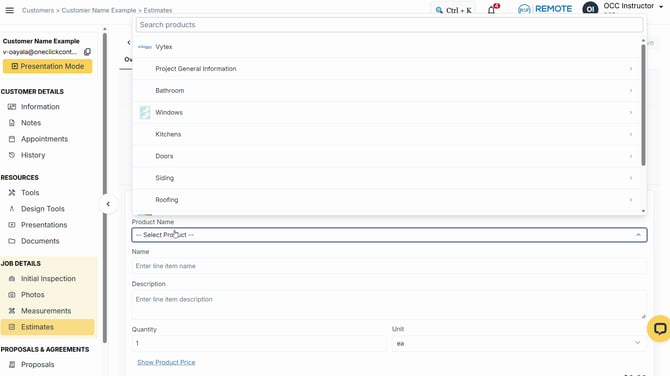
Image description: The Add Line Item product picker on the older estimate.
Step 3: Check the original price
Choose a product and review its Unit Price. New products, options, and updated prices from a later price list will not appear in this estimate automatically.
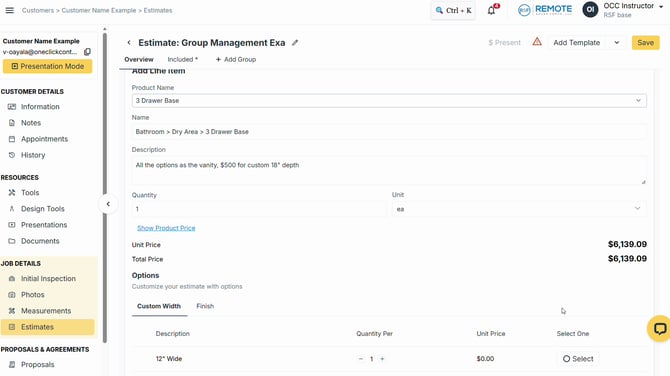
Image description: A line item showing the price from the estimate's original price list.
Step 4: Open Save as Template
On the older estimate, click the arrow beside Add Template, then choose Save as Template.
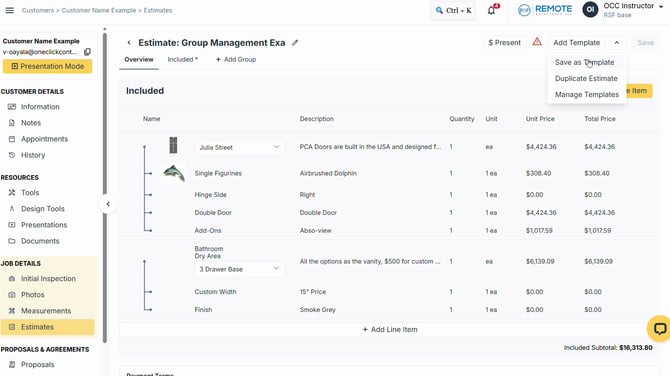
Image description: Save as Template in the Add Template menu.
Step 5: Read the template warning
The message asks you to use a new estimate to generate an estimate template. An estimate on an outdated price list cannot be saved as a template.
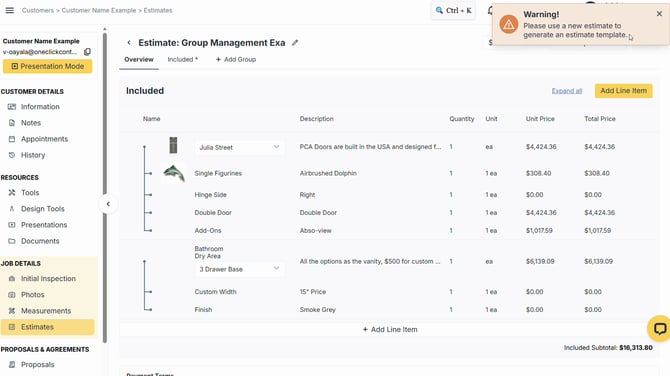
Image description: The warning requiring a new estimate before creating a template.
Step 6: Create a new estimate
Return to the job's Estimates list and click Add Estimate. The new estimate starts with the currently active price list.
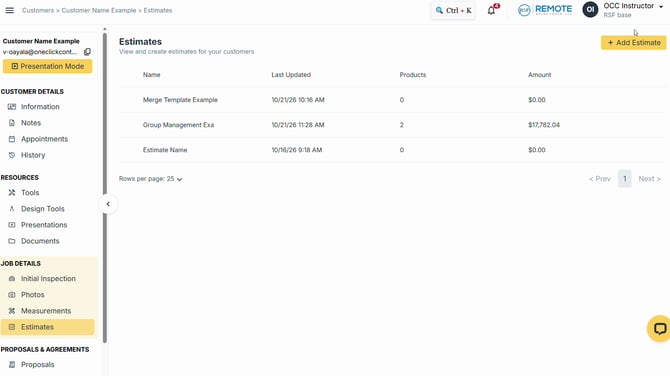
Image description: Add Estimate on the job's Estimates list.
Step 7: Add your template again
Click Add Template on the new estimate and select the template you need. Review its products, prices, and required selections before saving the new estimate.
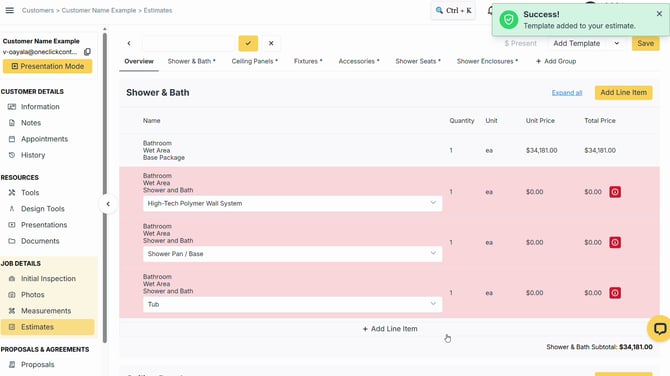
Image description: A template loaded into the new estimate, with required selections still visible.
💡 Pro tips
-
An admin may have permission to change an individual line item's price manually on the existing estimate. That does not refresh the estimate's price list.
-
Updates to contracts and documentation do apply to existing estimates. The original-price-list rule applies to products, options, and prices, not to those documents.
Remember
What you see can differ depending on your organization's settings and your permission level. Tab names, headers and available options are configurable. If you can't see or do something described here, ask your manager first. They can contact support.
Also read
-
How do I create a new estimate and save it?
-
How do I use or combine templates on a new estimate?
-
How to create and save an estimate template
-
How do I edit an existing template?